
How to Set Up M3U Playlist on IPTV Smarters Pro (2026 Complete Guide)
IPTV streaming experts with 5+ years of hands-on experience testing IPTV players, apps, and services across Android, iOS, Firestick, and Smart TV platforms.
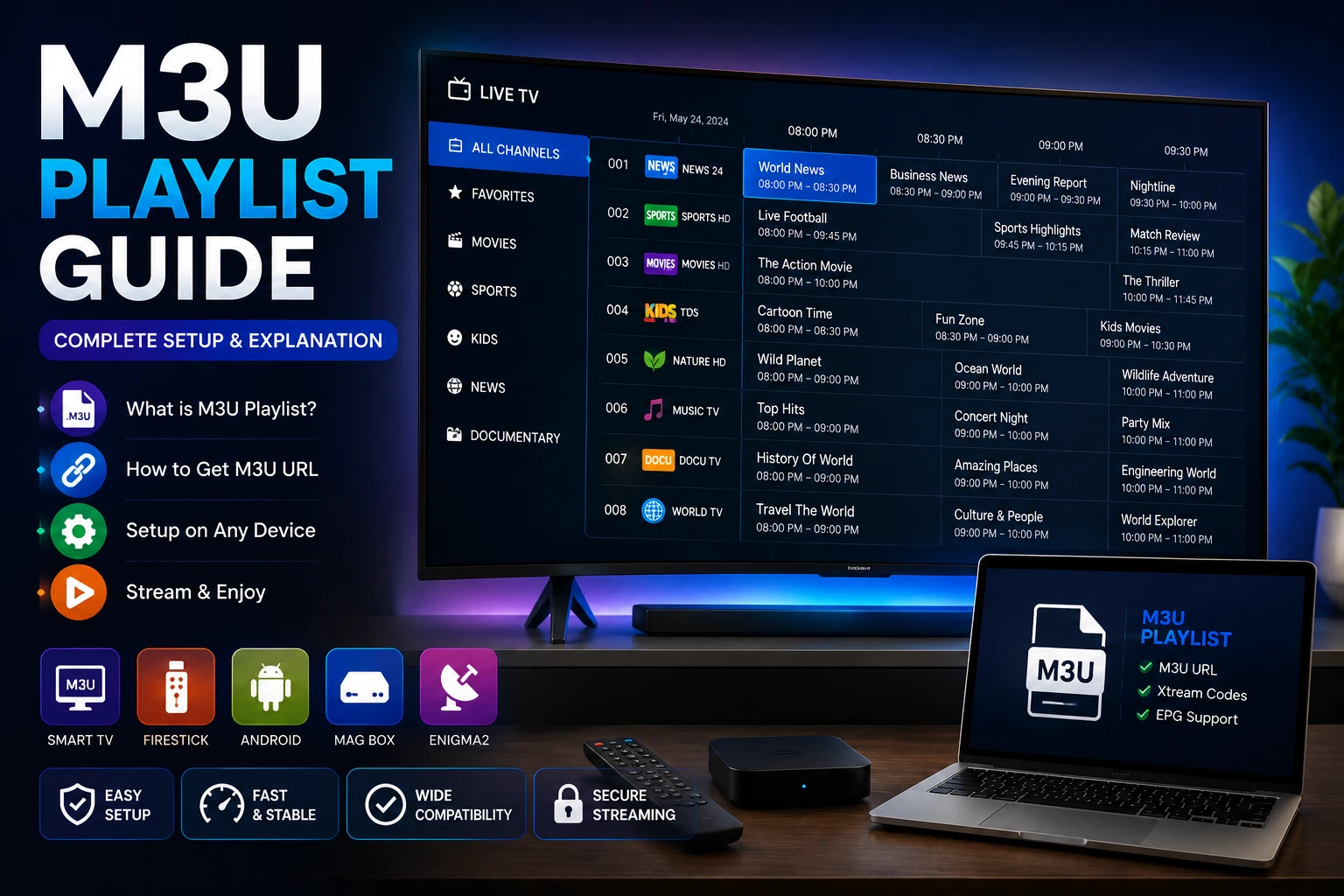
To add an M3U playlist to IPTV Smarters Pro, launch the app, select "Login with M3U Playlist," paste your playlist URL, and tap Add Playlist. The app will automatically load all channels, movies, and series from your playlist within seconds.
Key Takeaways
- M3U playlists contain channel URLs, names, and EPG tags in a text-based format
- Enter the exact M3U URL provided by your IPTV service into the app
- Playlist URLs typically start with http:// or https:// and end with .m3u or .m3u8
- Refresh your playlist periodically to pick up channel changes from your provider
- IPTV Smarters Pro supports multiple playlists that you can switch between easily
In This Article
What Is an M3U Playlist
An M3U playlist is a text-based file format that contains a list of URLs pointing to streaming media content. IPTV providers use M3U files to organize and deliver their channel lineup, movies, and series to users. Each entry in an M3U file includes the stream URL and metadata such as the channel name, logo URL, and EPG information.
IPTV Smarters Pro reads M3U playlists and organizes the content into categories like Live TV, Movies, Series, and Catch-Up TV. The app supports both standard M3U and extended M3U (M3U8) formats with UTF-8 encoding for international character support.
How to Add an M3U URL
Open IPTV Smarters Pro and select Login with M3U Playlist on the welcome screen. You will see a text field labeled Playlist URL or M3U URL. Carefully paste the full playlist URL provided by your IPTV service provider into this field.
You can optionally enter a Playlist Name to help identify it if you use multiple playlists. Tap Add Playlist or Connect to begin loading. The app will fetch the playlist from the server and parse the content.
Once parsing is complete, the app displays your available content organized into categories. Live TV channels appear under the Live TV section, movies under Movies, and series under Series. Your EPG data will also load automatically if your M3U playlist includes EPG tags.
Copy the URL Carefully
M3U URL Formatting Guide
M3U playlist URLs from IPTV providers generally follow this structure.
Most IPTV providers use URL parameters like username, password, and type to authenticate and deliver your personalized playlist. The m3u_plus format includes extended metadata like EPG IDs and logo URLs, which provides a richer experience in IPTV Smarters Pro.
If your URL ends with m3u instead of m3u_plus, you may not receive EPG data. Contact your provider and request an m3u_plus format URL if EPG is important to you.
Keep Your Playlist URL Private
How to Refresh Your Playlist
IPTV providers update their channel lineups regularly. To pick up changes, you need to refresh your playlist periodically. In IPTV Smarters Pro, open Settings > Playlist and select Refresh Playlist. The app will re-download and parse the latest version of your M3U URL.
We recommend refreshing your playlist every 24 to 48 hours to ensure you have access to the latest channels and content. Some users set a reminder to refresh playlists weekly, which is sufficient for most providers.
Managing Multiple Playlists
IPTV Smarters Pro supports adding multiple M3U playlists from different IPTV providers. This is useful if you have subscriptions with multiple services or want to combine free and premium playlist sources.
To add another playlist, go to Settings > Playlist > Add Playlist and enter the new URL. You can switch between playlists from the main menu or settings screen. Each playlist maintains its own channel list, EPG data, and favorites.
Common M3U Playlist Issues
- Playlist not loading: Check your internet connection and verify the URL is correct and active
- Invalid URL error: Ensure you copied the full URL including http:// or https:// at the beginning
- No channels displayed: Your subscription may have expired — contact your IPTV provider
- Channels missing after refresh: The provider may have changed channel lineup — refresh again or contact support
- EPG not showing: Make sure your playlist uses m3u_plus format and EPG is configured in app settings
- Playlist loads but no content plays: Your IPTV subscription may have reached the simultaneous stream limit
M3U vs Xtream Codes: What Is the Difference
M3U and Xtream Codes are the two main methods for connecting IPTV services to IPTV Smarters Pro. M3U uses a single URL that contains your playlist data. Xtream Codes uses a server address, username, and password entered separately.
Xtream Codes is generally more reliable because it uses an API connection that supports all content categories, EPG data, and VOD information out of the box without requiring additional configuration. If your provider supports both methods, Xtream Codes is recommended. See our Xtream Codes setup guide for detailed instructions.
For more help, visit our troubleshooting hub with solutions for common IPTV Smarters Pro issues.
Ready to Install?
Download IPTV Smarters Pro for free and follow the steps above to get started on your device.
Download IPTV Smarters ProConclusion
Setting up your M3U playlist in IPTV Smarters Pro is a simple process that unlocks access to your IPTV subscription content. Just paste the URL provided by your service and the app handles the rest. For providers that support it, consider using Xtream Codes for a more feature-rich experience. Need help with your EPG? Check our EPG setup guide.
IPTV Smarters Pro Team
IPTV streaming experts with 5+ years of hands-on experience testing IPTV players, apps, and services across Android, iOS, Firestick, and Smart TV platforms.
The IPTV Smarters Pro Team has been covering IPTV technology since 2021. We test every app, feature, and device ourselves to provide accurate, practical guides. Our reviews and tutorials have helped over 100,000 readers set up IPTV on their devices.