
How to Fix IPTV Buffering: 10 Proven Solutions
IPTV streaming experts with 5+ years of hands-on experience testing IPTV players, apps, and services across Android, iOS, Firestick, and Smart TV platforms.
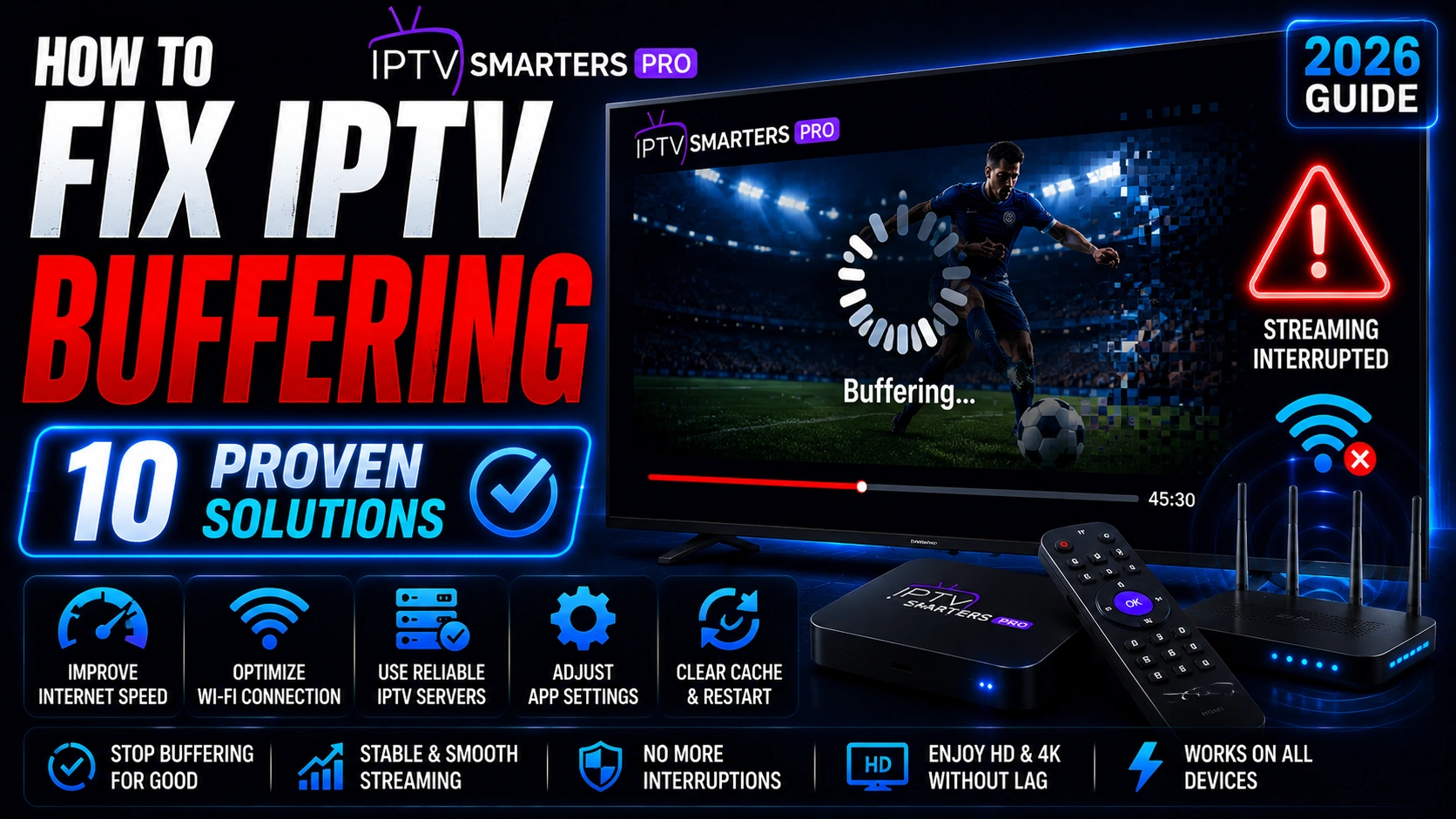
Nothing kills a movie night like the spinning wheel of death. If your IPTV keeps freezing, buffering, or dropping out mid-stream, you are not alone — over 60% of IPTV users deal with this at some point. The good news? Most causes are easy to fix without upgrading your plan or switching providers. Let us walk through ten solutions, from quick checks to advanced tweaks.
Key Takeaways
- Internet speed under 10 Mbps is the most common cause of buffering
- A VPN prevents ISP throttling of IPTV traffic
- Wired Ethernet always outperforms Wi-Fi for streaming
- Clear app cache and restart router weekly for optimal performance
In This Article
Buffering in IPTV Smarters Pro is usually caused by slow internet (under 10 Mbps for HD), ISP throttling, or server congestion. Solutions include using a wired connection, enabling a VPN, lowering stream quality, clearing the app cache, and switching to Google DNS.
What Causes IPTV Buffering in IPTV Smarters Pro?
Buffering in IPTV Smarters Pro usually comes down to one of a few things. Your internet might be too slow — you need at least 10 Mbps for HD and 25 Mbps for 4K. Wi-Fi interference from other devices or being too far from the router can also cause problems. Some ISPs throttle IPTV traffic when they detect streaming. And sometimes the issue is on your provider's end, especially during peak evening hours when everyone is watching. Figuring out which one is causing your headache is half the battle.
1. Check Your Internet Speed
This is always the first place to start. Run a speed test on the same device you use for streaming. If you are getting less than 10 Mbps, HD streams will struggle. For 4K, you want at least 25 Mbps. If your plan should deliver more but the test shows less, try restarting your modem and testing again. Still slow? Time to call your ISP.
Pro Tip
2. Use a Wired Connection
Wi-Fi is convenient, but it is also unpredictable. Walls, neighbors' networks, and even your microwave can interfere with the signal. Plug your streaming device directly into the router with an Ethernet cable and you will get a stable, consistent connection. If running a cable across the room is not an option, try powerline adapters or a mesh Wi-Fi system.
3. Use a VPN
A lot of ISPs throttle streaming traffic, especially during peak hours. They see the data pattern and deliberately slow it down. A VPN encrypts your traffic so your ISP cannot tell what you are streaming. This alone fixes buffering for a huge number of people. Just make sure you pick a reputable VPN with fast servers — free ones often make things worse.
4. Reduce Streaming Quality
It is tempting to leave everything on 4K, but if your connection cannot keep up, you will buffer constantly. In IPTV Smarters Pro settings, drop the stream quality down to 1080p or even 720p. The picture will still look great, and the stream will run smoothly. You can always bump it back up during off-peak hours when your connection has room to breathe.
5. Change DNS Settings
Your ISP's default DNS servers are not always the fastest. Switching to Google DNS (8.8.8.8 and 8.8.4.4) or Cloudflare DNS (1.1.1.1) can speed up how quickly your device resolves stream URLs. This is an easy five-minute change that can shave seconds off loading times and reduce buffering. You can update DNS in your router settings or directly on your streaming device.
6. Clear App Cache
Over time, IPTV Smarters Pro builds up temporary files that can slow things down. Head to your device settings, find the app, and clear the cache. This does not delete your login or playlists — it just wipes the junk. Do this every few weeks and you will notice the app stays snappy.
7. Restart Your Router
Your router works hard and eventually gets bogged down. Unplug it, count to thirty, and plug it back in. That simple reset clears the cache, renews your IP lease, and gives you a fresh connection. Do it once a week to keep things running smoothly.
8. Close Background Apps
Your Firestick, Smart TV, or phone might be running updates, downloads, or video calls in the background without you realizing it. All of those eat bandwidth. Before you fire up IPTV, close everything else. On Android TV and Firestick, go into settings and force-stop apps you are not using.
9. Update the App
Running an old version of IPTV Smarters Pro means you are missing performance fixes and bug patches. Check for updates in your app store or download the latest APK if you are on a Firestick. The developers are constantly optimizing, so staying current is an easy win.
10. Contact Your Provider
If you have tried everything above and the buffering will not go away, the problem might not be on your end at all. Your IPTV provider could be having server issues, especially during peak hours. Reach out to their support team and ask about server status or capacity. If it is a recurring problem, it might be time to look for a more reliable provider.
Important
How to Prevent IPTV Buffering in the Future
- Schedule a weekly router restart to maintain optimal network performance
- Use a quality VPN service with dedicated streaming servers
- Monitor your internet speed monthly and upgrade if consistently below 25 Mbps
- Keep both the app and your device operating system updated
What Common Mistakes Make IPTV Buffering Worse?
- Streaming 4K content on internet connections under 25 Mbps
- Using free VPNs that have slow server speeds
- Running large downloads or updates while streaming IPTV
- Placing the streaming device too far from the Wi-Fi router
Frequently Asked Questions
Why does my IPTV buffer on fast internet?
Even with a fast plan, you can experience buffering if your Wi-Fi is unstable, your ISP is throttling streaming traffic, or your IPTV provider's servers are overloaded. Try a wired connection or a VPN to rule out the first two causes before assuming it is your provider.
Will a VPN stop buffering?
A VPN can stop buffering caused by ISP throttling, but it is not a magic bullet. If your base internet speed is too slow or your provider's servers are the bottleneck, a VPN will not help. Use a quality VPN with fast servers — a free or slow VPN can actually make buffering worse.
Is 4K streaming possible without buffering?
Yes, but only if you meet the requirements: a stable internet connection of at least 25 Mbps, a wired Ethernet connection (not Wi-Fi), and an IPTV provider that has the server capacity to deliver 4K streams consistently. Even then, peak evening hours can cause slowdowns.
Should I switch providers if buffering persists?
Only after you have exhausted all other fixes. If your internet speed is solid, you are using a wired connection with a VPN, the app is updated, and the cache is clear — and buffering still happens daily — then yes, your provider might be overselling their service. Look for one with positive reviews about stream stability.
Ready to Start Streaming?
Download IPTV Smarters Pro for free and enjoy live TV, movies, and series on all your devices.
Download IPTV Smarters ProConclusion
Buffering is frustrating, but it is almost always fixable. Start with the basics — check your speed, plug in an Ethernet cable, try a VPN — and work through the list from there. Nine times out of ten, one of the first few solutions will solve it. If you are still stuck, we have more detailed guides in our troubleshooting hub and you can always contact our support team for personalized help. Ready to try it? Download IPTV Smarters Pro for free.
IPTV Smarters Pro Team
IPTV streaming experts with 5+ years of hands-on experience testing IPTV players, apps, and services across Android, iOS, Firestick, and Smart TV platforms.
The IPTV Smarters Pro Team has been covering IPTV technology since 2021. We test every app, feature, and device ourselves to provide accurate, practical guides. Our reviews and tutorials have helped over 100,000 readers set up IPTV on their devices.