
IPTV Smarters Pro Keeps Crashing? Fix It Now (2026 Guide)
IPTV streaming experts with 5+ years of hands-on experience testing IPTV players, apps, and services across Android, iOS, Firestick, and Smart TV platforms.
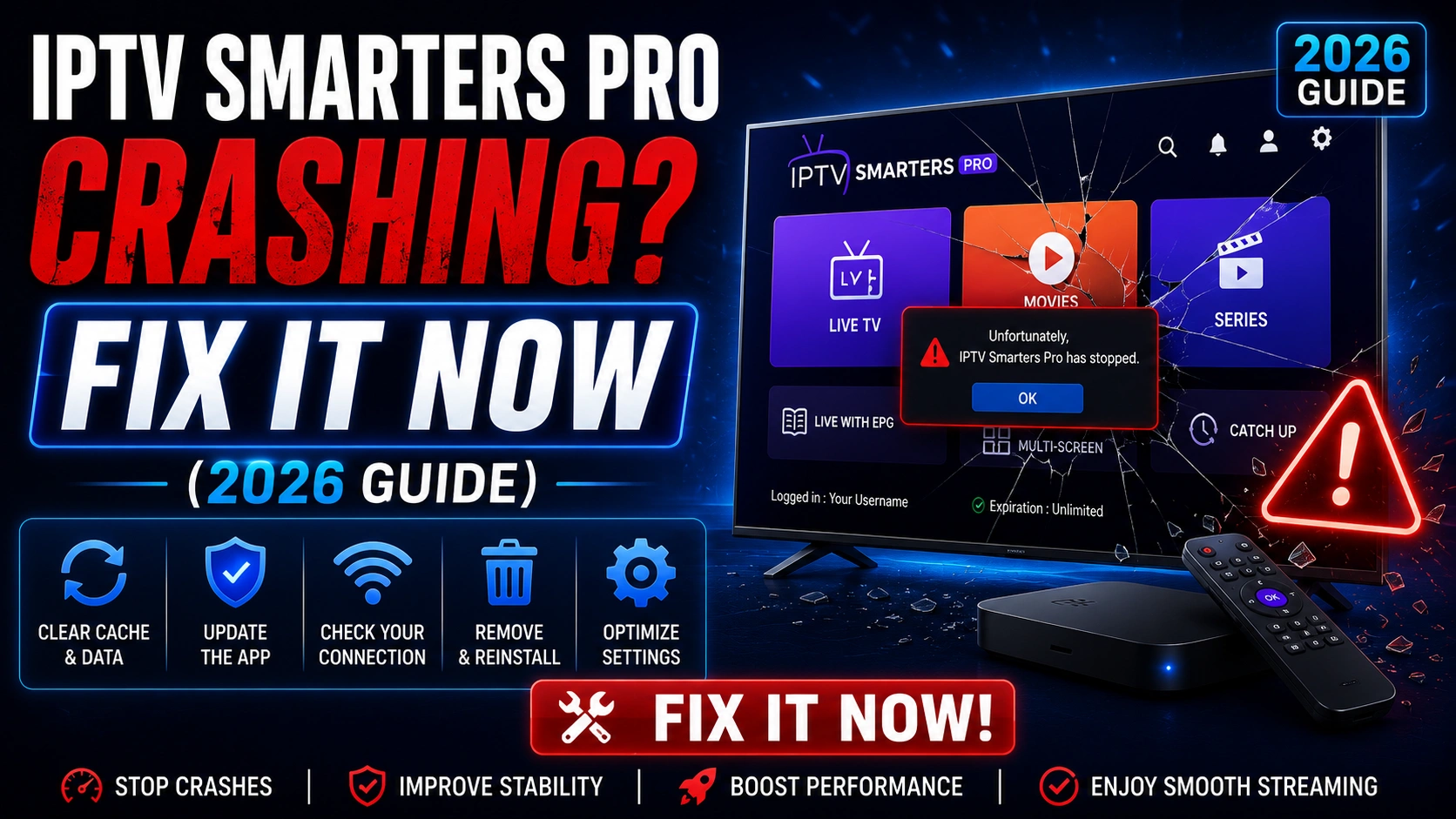
Nothing disrupts your streaming like an app that crashes repeatedly. If IPTV Smarters Pro keeps closing unexpectedly, freezing, or restarting, this guide covers every proven fix. We have organized solutions from simplest to most advanced so you can get back to streaming quickly.
Key Takeaways
- Clearing cache and data fixes 80% of crashing issues
- Update to v4.0.3 from the official download page
- Restart your device and free up storage space before reinstalling
- Maintain 1 GB free space and restart weekly to prevent future crashes
In This Article
IPTV Smarters Pro crashing is usually caused by corrupted cache, outdated app version, insufficient device storage, or incompatible device firmware. Fix it by clearing the app cache, updating to the latest version, restarting your device, or reinstalling the app. If crashes persist, check for device OS updates or try an older stable version of the app.
Why Does IPTV Smarters Pro Keep Crashing?
App crashes usually boil down to one of five culprits: corrupted cached data, an outdated app version, low device storage, not enough RAM, or an OS-level incompatibility. Figuring out which one applies to your device is the fastest way to apply the right fix and get back to watching.
Fix 1: Clear App Cache and Data
Corrupted cache files are the number one reason IPTV Smarters Pro crashes. Head to your device Settings > Apps > IPTV Smarters Pro> Storage > Clear Cache. If the app still misbehaves, tap Clear Data too — just know this will log you out, so keep your credentials handy before you do it.
Fix 2: Update to the Latest Version
Running an older build can cause all sorts of instability, especially after your device's OS updates. Grab the latest IPTV Smarters Pro APK v4.0.3 from the official download page and install it over your current version. On Firestick, use the Downloader app with the official URL.
Pro Tip
Fix 3: Restart Your Device
A quick restart flushes out temporary glitches that make apps unstable. On Firestick, go to Settings > My Fire TV > Restart. On Android TV, unplug the power cord for 30 seconds. On a phone or tablet, a standard power cycle does the trick.
Fix 4: Free Up Storage Space
When your device is running low on storage, apps are the first to feel the pinch. Try to keep at least 500 MB free at all times. On Firestick, check Settings > My Fire TV > About > Storage. Uninstall apps you do not use anymore or offload data to external storage if your device supports it.
Fix 5: Reinstall the Application
If clearing the cache did not do the job, a clean reinstall often will. Uninstall IPTV Smarters Pro completely, restart your device, then install a fresh copy from the official download page. This wipes out any corrupted files that clearing cache might have missed.
Before You Reinstall
Fix 6: Check Device Compatibility
IPTV Smarters Pro needs Android 5.0 or equivalent to run properly. Older devices or heavily customized Android TV builds can struggle. Check your device specs and update the OS if an update is available. For Firestick users, make sure you are on Fire OS 6 or later.
Prevention Tips
- Clear the app cache once a month as part of routine maintenance
- Keep IPTV Smarters Pro updated to the latest available version
- Maintain at least 1 GB of free storage on your streaming device
- Restart your device weekly to clear out system memory
- Avoid running bandwidth-heavy apps at the same time as streaming
Frequently Asked Questions
Why does my app keep crashing on Firestick?
Firestick devices have limited RAM and storage, so they are more prone to crashes than newer Android TV boxes. Clearing the cache, freeing up at least 500 MB of storage, and restarting the device usually resolves it. If it still crashes, try sideloading the latest APK using the Downloader app.
Will reinstalling fix crashing?
In most cases, yes. A clean reinstall removes any corrupted app files that clearing cache alone cannot touch. Just make sure you have your login credentials saved somewhere before you uninstall.
How much RAM do I need?
IPTV Smarters Pro runs best on devices with at least 2 GB of RAM. Devices with 1 GB — like older Firestick models — can still run the app but may struggle with HD streams or multi-screen mode. If your device is constantly maxing out memory, consider upgrading to a newer streaming box.
Does clearing cache delete my settings?
Clearing the cache only removes temporary files — your login details, playlists, and settings stay intact. Clearing data, on the other hand, resets everything back to factory defaults and will log you out.
Ready to Start Streaming?
Download IPTV Smarters Pro for free and enjoy live TV, movies, and series on all your devices.
Download IPTV Smarters ProConclusion
App crashes are frustrating, but they are almost always fixable. Start with the simplest solution — clear the cache — then work your way through updating, restarting, and reinstalling if needed. For persistent problems that do not respond to any of these fixes, check out our troubleshooting hub or reach out to support for personalized help. Ready to try it? Download IPTV Smarters Pro for free.
If crashes persist after trying all the standard fixes, the root cause may be specific to your device. On Firestick 4K Max and Fire TV Cube, background app suspensions in Fire OS can force IPTV Smarters Pro to close when system memory runs low. Go to Settings > Applications > Manage Installed Applications > IPTV Smarters Pro> Force Stop, then immediately relaunch the app to free up allocated memory. On Android TV boxes running Android 11 or 12, a known memory leak in Android System WebView can cause streaming apps to crash after 30–45 minutes of continuous playback. Updating Android System WebView via the Google Play Store resolves this in most cases. For smart TVs running Android TV, ensure the TV firmware is updated — manufacturers frequently push stability patches that fix app crash bugs.
Overheating is another frequently overlooked trigger for app crashes, especially during extended streaming sessions. When internal device temperatures exceed safe thresholds, the operating system begins terminating apps to protect hardware components. If your device feels warm to the touch, power it off completely for 15–20 minutes to allow it to cool down before resuming. Firestick users can benefit from using an HDMI extender cable, which improves airflow around the device and can reduce operating temperatures by several degrees. Also verify that your power adapter supplies adequate wattage — underpowered adapters can cause voltage drops that lead to random app closures and system instability.
IPTV Smarters Pro Team
IPTV streaming experts with 5+ years of hands-on experience testing IPTV players, apps, and services across Android, iOS, Firestick, and Smart TV platforms.
The IPTV Smarters Pro Team has been covering IPTV technology since 2021. We test every app, feature, and device ourselves to provide accurate, practical guides. Our reviews and tutorials have helped over 100,000 readers set up IPTV on their devices.