
IPTV Smarters Pro No Sound? Fix Audio Issues (2026 Guide)
IPTV streaming experts with 5+ years of hands-on experience testing IPTV players, apps, and services across Android, iOS, Firestick, and Smart TV platforms.
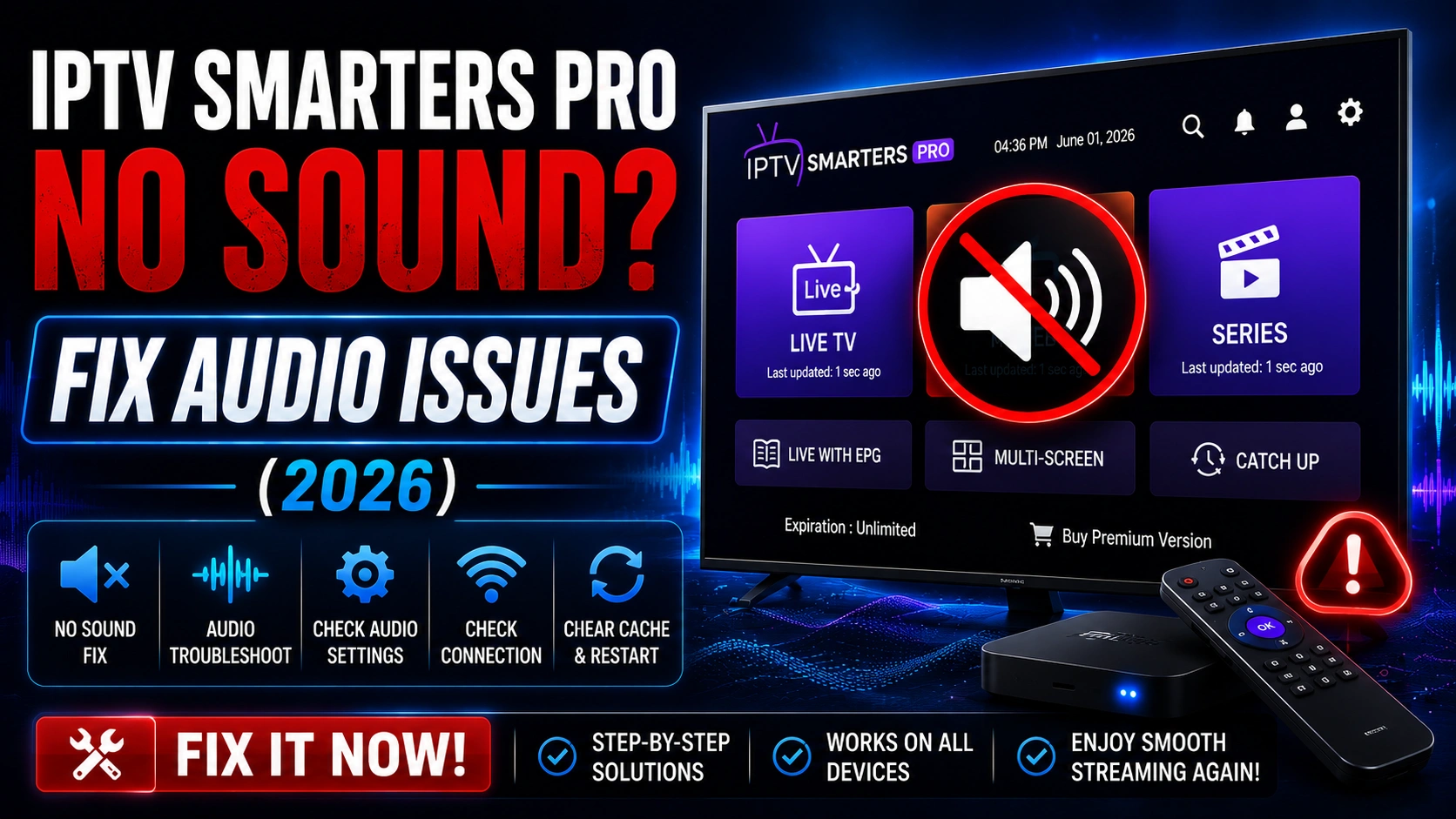
Audio problems in IPTV Smarters Pro can manifest as no sound, intermittent audio, or out-of-sync audio. These issues are typically caused by device audio settings rather than the app itself. This guide covers every fix organized by device type.
Key Takeaways
- Most no-sound issues are caused by incorrect audio output settings
- Switch device audio from Auto to PCM to resolve codec conflicts
- HDMI ARC conflicts often cause audio drops with IPTV apps
- Try different audio tracks within the stream before changing settings
- Clear app cache and restart device as a first troubleshooting step
In This Article
IPTV Smarters Pro audio issues are usually caused by incorrect audio output settings, HDMI ARC conflicts, or unsupported audio codecs. Fix it by checking in-app audio settings, switching to PCM output on your device, toggling HDMI ARC off and on, or trying a different audio track within the stream. On Firestick, go to Settings > Audio and switch from Best Available to PCM.
What Quick Fixes Can You Try for No Sound?
- Check that your TV or speaker is not muted and volume is turned up
- Restart IPTV Smarters Pro completely and try a different channel
- Try a different audio track by tapping the audio icon during playback
- Unplug your TV or streaming device for 30 seconds and plug it back in
Before you begin
Fix 1: Check In-App Audio Settings
Open IPTV Smarters Proand go to Settings > Player Settings > Audio. Ensure the audio output is set to your device type. Try switching between options like "Default," "Android" or "Media Codec." Some streams use audio codecs that require specific settings.
Fix 2: Change Device Audio Output
On Firestick, go to Settings > Display & Audio > Audio > Dolby Digital Output and switch to "Dolby Digital Plus" or "PCM." On Android TV, go to Settings > Audio and try switching between "Auto," "PCM," and "Passthrough."
Fix 3: Disable HDMI ARC
HDMI ARC can cause audio conflicts with IPTV apps. Try disconnecting soundbars or AV receivers and testing audio through your TV speakers. If audio works on TV speakers, the issue is with the ARC or eARC connection.
HDMI ARC tip
Fix 4: Clear App Cache
Go to your device Settings > Apps > IPTV Smarters Pro> Storage > Clear Cache. This removes corrupted temporary files that may affect audio playback.
Fix 5: Check Stream Source
Some IPTV streams may have audio issues on the provider side. Try switching to a different channel or stream to determine if the issue is app-wide or stream-specific. If only one channel has no audio, the problem is with the provider's stream.
Fix 6: Update Audio Drivers (Windows)
On Windows, outdated or incorrect audio drivers can cause no-sound issues. Open Device Manager, expand Sound controllers, right-click your audio device, and select Update driver. Restart your computer after updating.
FAQ
Why is there no sound on certain channels only?
This usually means the issue is with the stream source, not your device. Individual channels may use different audio codecs or have encoding errors on the provider side. Try switching audio tracks within the player — tap the audio icon during playback and select an alternate track if available. If the problem persists across multiple channels, it is likely a device or app configuration issue.
Does audio codec matter?
Yes. Some IPTV streams use Dolby Digital (AC-3), AAC, MPEG, or other audio codecs that your device may not support in passthrough mode. Switching your device audio output to PCM forces the decoder to convert everything to a compatible format, which resolves most codec-related audio issues. This is why PCM is the most common fix for no-sound problems.
How do I change audio track in IPTV Smarters Pro?
During playback, tap the screen to reveal the player controls. Look for an audio or speaker icon — typically in the top toolbar. Tap it to see available audio tracks for the current stream. Select a different track if one is listed. Some streams only have a single audio track, so this option may not always be available.
Will reinstalling fix audio issues?
Rarely, but it is worth trying as a last resort. Reinstalling IPTV Smarters Pro clears all app data and resets settings to defaults, which can fix a corrupted configuration. However, since most audio issues are caused by device-level audio settings, reinstalling the app alone often does not resolve them. Try the fixes above before resorting to a reinstall.
Bluetooth audio troubleshooting
Bluetooth speakers and headphones add another layer of potential audio issues. On Firestick and Android TV, Bluetooth audio can introduce a noticeable lip-sync delay (200-500 ms) that makes dialogue appear out of sync with video. To minimize this, use Bluetooth 5.0 or newer devices with aptX Low Latency support. If audio cuts out completely over Bluetooth, unpair the device, restart the streaming device, and re-pair them fresh. On Android phones and tablets, check that "Media Audio" is enabled in the Bluetooth device settings — some devices default to "Phone Calls Only" mode, which prevents media audio playback.
Audio works in other apps but not IPTV Smarters Pro
This is a common scenario that indicates a codec compatibility issue specific to IPTV Smarters Pro. Other streaming apps like Netflix or YouTube may use different audio decoders or may have negotiated a compatible audio format with your device automatically. The fix is to force PCM output at the device level (Firestick: Settings > Display & Audio > Audio > Dolby Digital Output > PCM). On Samsung TVs, go to Settings > Sound > Expert Settings > Digital Output Audio Format and select PCM. On LG TVs, navigate to Settings > Sound > Sound Out > HDMI Audio Input Format and choose PCM. Once changed, restart IPTV Smarters Pro and test audio again. If the issue persists on a particular channel but not others, the stream itself may be using an uncommon codec like E-AC-3 or Opus that your device handles differently from mainstream streaming services.
Ready to Start Streaming?
Download IPTV Smarters Pro for free and enjoy live TV, movies, and series on all your devices.
Download IPTV Smarters ProConclusion
Audio issues in IPTV Smarters Pro are almost always fixable with the right device audio settings. Start with the quick fixes, then work through the device-specific audio output settings. PCM output resolves the majority of codec conflicts, and disabling HDMI ARC fixes most soundbar-related problems. If you have tried all the steps above and still have no audio, visit our troubleshooting hub for more device-specific guides or contact support for further assistance. Ready to try it? Download IPTV Smarters Pro for free.
IPTV Smarters Pro Team
IPTV streaming experts with 5+ years of hands-on experience testing IPTV players, apps, and services across Android, iOS, Firestick, and Smart TV platforms.
The IPTV Smarters Pro Team has been covering IPTV technology since 2021. We test every app, feature, and device ourselves to provide accurate, practical guides. Our reviews and tutorials have helped over 100,000 readers set up IPTV on their devices.