IPTV Smarters Pro Audio Out of Sync? Fix Lip-Sync Issues
IPTV streaming experts with 5+ years of hands-on experience testing IPTV players, apps, and services across Android, iOS, Firestick, and Smart TV platforms.
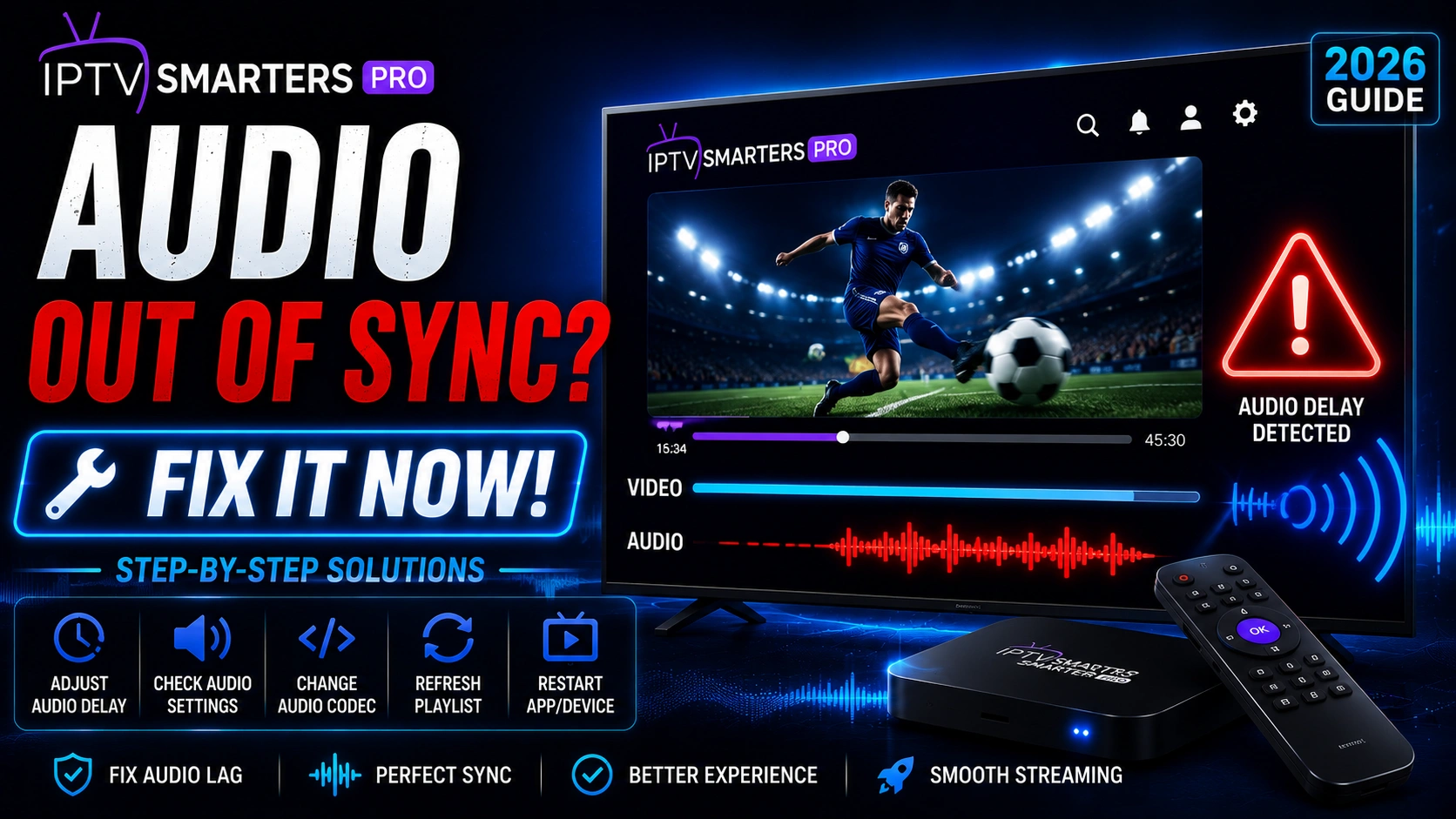
Audio lagging behind video — or worse, ahead of it — makes any stream unwatchable. Lip-sync issues in IPTV Smarters Pro are usually caused by how your device processes different audio formats rather than a problem with the app itself.
Key Takeaways
- Switch device audio to PCM format to resolve most sync issues
- Adjust audio delay in 100ms increments within the player controls
- Try different audio tracks — stereo often works better than 5.1
- Switch from hardware to software decoding in player settings
- Check HDMI cables and update device firmware as a final step
In This Article
Audio out of sync in IPTV Smarters Pro is usually caused by audio codec mismatches or HDMI ARC processing delays. Fix it by switching the audio output to PCM in your device settings, disabling Dolby Digital passthrough, adjusting audio delay in the player settings, or switching to a different audio track within the stream. On Firestick, go to Settings > Audio and select PCM instead of Best Available.
Fix 1: Change Audio Output Format
The most effective fix is switching your device audio to PCM format. On Firestick, go to Settings > Display & Audio > Audio > Dolby Digital Output and select PCM. On Android TV, go to Settings > Audio > Advanced and disable Dolby Digital passthrough.
Pro Tip
Fix 2: Adjust Audio Delay in App
IPTV Smarters Pro includes an audio delay adjustment feature. During playback, tap the screen to reveal the player controls, look for an audio sync option, and adjust the delay in 100ms increments until the audio matches the video.
Fix 3: Switch Audio Track
Many IPTV streams offer multiple audio tracks. Tap the audio icon during playback and try a different track. Switching from 5.1 surround to stereo often resolves sync issues.
Fix 4: Disable Hardware Decoding
In IPTV Smarters Pro settings, go to Player Settings and try switching from Hardware Decoding to Software Decoding. Software decoding uses more CPU but often resolves audio sync issues caused by incompatible hardware decoders.
Performance Note
Fix 5: Check HDMI Connection
Faulty or low-quality HDMI cables can cause audio sync problems, especially with 4K content. Try a different HDMI cable or port. If you use a soundbar or AV receiver, try connecting your device directly to the TV to isolate the issue.
Fix 6: Update Device Firmware
Outdated TV or streaming device firmware can introduce audio processing delays. Check for system updates on your device and install any available updates. On Firestick, go to Settings > My Fire TV > About > Check for Updates.
Frequently Asked Questions
What causes audio to go out of sync?
Audio sync issues are typically caused by audio codec mismatches between the stream and your device, HDMI ARC or eARC processing delays, Dolby Digital passthrough adding latency, or insufficient device processing power when handling high-bitrate streams.
Can I fix audio sync in the app settings?
Yes. IPTV Smarters Pro includes a built-in audio delay slider in the player controls during playback. You can also switch between hardware and software decoding in the app's Player Settings, which often resolves persistent sync problems.
Does audio sync affect all channels or just some?
Audio sync issues often vary by channel because different broadcasters use different audio codecs and bitrates. You may find that some channels are perfectly in sync while others are not. Try switching audio tracks on affected channels first before changing device-wide settings.
Will a better internet connection fix audio delay?
No. Audio sync issues are caused by local audio processing, not internet speed. A faster connection will improve buffering and stream quality but will not fix lip-sync errors. Focus on the device audio settings and in-app adjustments above.
Ready to Start Streaming?
Download IPTV Smarters Pro for free and enjoy live TV, movies, and series on all your devices.
Download IPTV Smarters ProConclusion
Audio sync issues in IPTV Smarters Pro are usually caused by device audio settings, HDMI connections, or hardware decoding conflicts. Work through the fixes above from simplest to most advanced. Most users resolve the problem by adjusting audio delay settings or switching audio output format. Ready to try it? Download IPTV Smarters Pro for free.
Still Having Audio Sync Problems?
If none of the solutions above resolved your issue, visit our comprehensive troubleshooting hub for device-specific guides, or check our guide on IPTV Smarters Pro no sound if you're not hearing any audio at all.
IPTV Smarters Pro Team
IPTV streaming experts with 5+ years of hands-on experience testing IPTV players, apps, and services across Android, iOS, Firestick, and Smart TV platforms.
The IPTV Smarters Pro Team has been covering IPTV technology since 2021. We test every app, feature, and device ourselves to provide accurate, practical guides. Our reviews and tutorials have helped over 100,000 readers set up IPTV on their devices.