
IPTV Smarters Pro Recording Guide: How to Record Live TV
IPTV streaming experts with 5+ years of hands-on experience testing IPTV players, apps, and services across Android, iOS, Firestick, and Smart TV platforms.
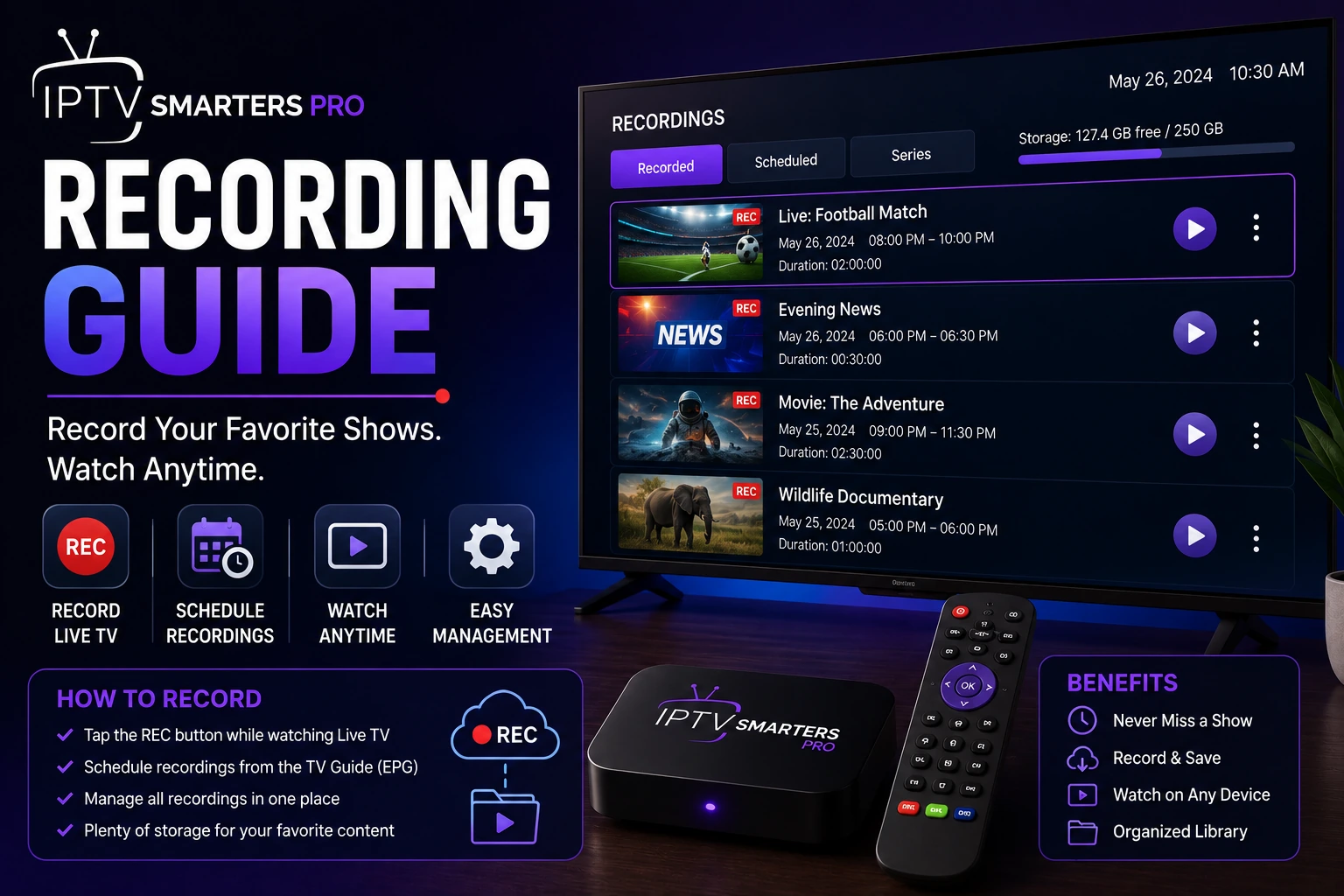
Recording live TV lets you watch programs on your own schedule. Whether you want to save a live sports event, a movie, or a TV show, IPTV Smarters Pro includes built-in recording functionality that works across supported devices.
Key Takeaways
- Tap the Record button during playback to save live TV to your device
- 1 hour of HD recording uses approximately 2 GB of storage
- Provider may restrict recording on certain channels or plans
- Recordings are saved in MP4 format and accessible from the Recordings menu
- Ensure Storage permission is enabled for the app to save recordings
In This Article
IPTV Smarters Pro supports recording live TV directly to your device storage. During playback, tap the Record button in the player controls to start recording. Recordings are saved in MP4 format to your device's storage or SD card. Use the Recordings menu to manage, play, or delete saved content. Recording requires sufficient free storage and may be limited by your IPTV provider's policy.
What Do You Need to Record Live TV on IPTV Smarters Pro?
- Sufficient storage space on your device (1 hour of HD = approximately 2 GB)
- An IPTV provider that permits recording (some providers block this feature)
- IPTV Smarters Pro version 4.0 or later
- Device with write access to storage (Android and Firestick supported)
How to Record a Live Channel
Step 1: Start Playing a Channel
Open IPTV Smarters Pro, navigate to a live TV channel, and start playing it normally.
Step 2: Open Player Controls
Tap anywhere on the screen to reveal the player controls overlay. Look for the Record button, typically represented by a red circle icon.
Step 3: Start Recording
Tap the Record button to begin recording the current stream. A red indicator will appear showing that recording is active. You can continue watching while recording runs in the background.
Step 4: Stop Recording
Tap the Record button again or exit the channel to stop recording. The recording is saved automatically to your device storage.
Recording Tip
How to Manage Your Recordings in IPTV Smarters Pro?
Access your recordings from the main menu by selecting Recordings or Library. Here you can play, rename, delete, or share recorded content. Recordings are organized by date and channel name for easy browsing.
Recording Storage and Limits
| Quality | Size per Hour | 10 GB Storage |
|---|---|---|
| SD (480p) | ~500 MB | ~20 hours |
| HD (720p) | ~1 GB | ~10 hours |
| Full HD (1080p) | ~2 GB | ~5 hours |
| 4K (2160p) | ~7 GB | ~1.5 hours |
Provider Restrictions
Why Is My IPTV Smarters Pro Recording Not Working?
Record button is grayed out
Your IPTV provider may have disabled recording for certain channels or your subscription plan. Contact your provider to confirm recording permissions.
Recording starts but file is empty
The app may not have write permission to your storage. Go to your device Settings > Apps > IPTV Smarters Pro > Permissions and ensure Storage access is enabled.
Not enough storage
Free up space by deleting old recordings or unused apps. Consider using an external SD card for expanded storage on supported devices.
Frequently Asked Questions
Can I record shows on Firestick?
Yes, IPTV Smarters Pro supports recording on Firestick devices. You will need to connect an external USB drive or SD card for storage, as Firestick internal storage is limited. Go to Firestick Settings > My Fire TV > USB Drive to set up external storage for recordings.
Where are recordings saved?
Recordings are saved to your device's internal storage or external SD card by default. You can find them in the Recordings or Library section of the IPTV Smarters Pro main menu. Files are stored in MP4 format and named by channel and recording date.
How much storage do I need for recordings?
Storage needs depend on the video quality. SD quality uses about 500 MB per hour, HD uses about 2 GB per hour, and 4K can use up to 7 GB per hour. For regular recording, a 32 GB SD card provides plenty of space for dozens of shows.
Can I schedule recordings in advance?
IPTV Smarters Pro does not currently include a built-in recording scheduler. You can start recordings manually while watching a live channel. For scheduled recording, consider using an external DVR solution that integrates with your IPTV provider.
Recording interruptions: what happens if the stream drops?
If your internet connection or the IPTV stream drops during a recording, the app saves whatever portion was captured up to that point. The resulting file may be shorter than expected but remains playable. Internet interruptions of under 30 seconds often go unnoticed during recording since the app buffers the stream, but longer outages will split the recording at the point of disconnection. For critical recordings like live sports events, a wired Ethernet connection or a UPS for your streaming device helps prevent data loss from power fluctuations.
Device-specific recording differences
Recording behavior varies across devices. On Firestick, recordings save to attached USB storage by default — without external storage the app may not record at all due to limited internal space. On Android phones and tablets, recordings go to internal storage or an SD card depending on your device settings, and you can change the save location under Settings > Storage. On Windows, recordings save to the Videos or Documents folder in MP4 format, and you can access them directly through File Explorer without opening the app. On all platforms, avoid starting a recording on a nearly full drive — the app does not always warn you when storage is low, and the recording will fail silently mid-capture.
Managing large recording libraries
Ready to Start Streaming?
Download IPTV Smarters Pro for free and enjoy live TV, movies, and series on all your devices.
Download IPTV Smarters ProConclusion
Recording live TV with IPTV Smarters Pro is straightforward and gives you the flexibility to watch programs on your schedule. Ensure you have sufficient storage and provider permission, then use the Record button to capture any live channel. For more tips, check out our EPG guide to navigate channels with ease, or the multi-screen guide to watch multiple channels at once. Ready to try it? Download IPTV Smarters Pro for free.
IPTV Smarters Pro Team
IPTV streaming experts with 5+ years of hands-on experience testing IPTV players, apps, and services across Android, iOS, Firestick, and Smart TV platforms.
The IPTV Smarters Pro Team has been covering IPTV technology since 2021. We test every app, feature, and device ourselves to provide accurate, practical guides. Our reviews and tutorials have helped over 100,000 readers set up IPTV on their devices.