
How to Use Multi-Screen on IPTV Smarters Pro (Step-by-Step Guide)
IPTV streaming experts with 5+ years of hands-on experience testing IPTV players, apps, and services across Android, iOS, Firestick, and Smart TV platforms.
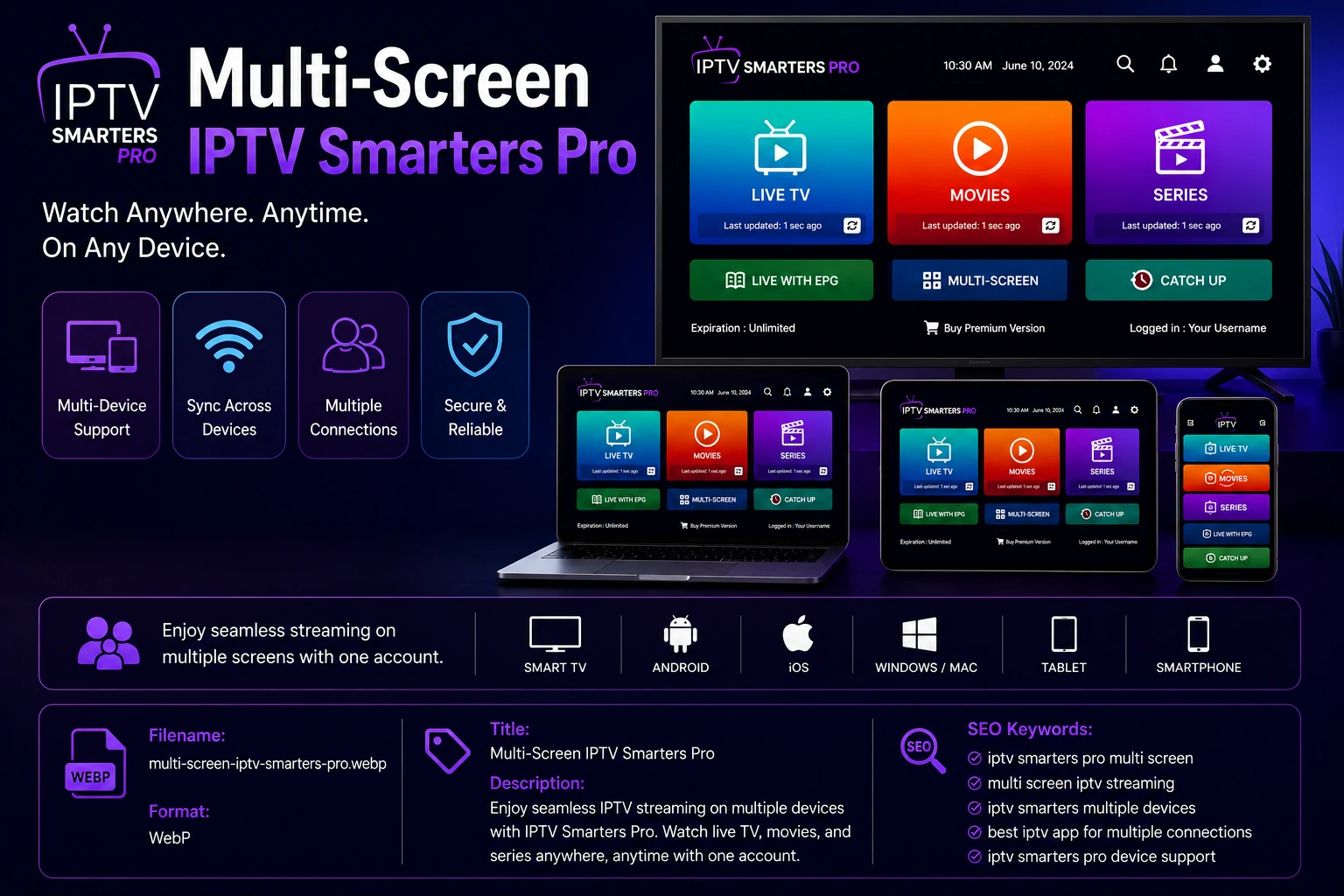
The multi-screen feature is one of IPTV Smarters Pro's most powerful capabilities. It allows family members to watch different channels on different devices at the same time, eliminating conflicts over what to watch. This guide explains exactly how to set it up and get the most out of it.
Key Takeaways
- IPTV Smarters Pro supports up to 4 simultaneous streams with multi-screen
- Each device needs the same login credentials to access the subscription
- Requires 10 Mbps per HD stream or 25 Mbps per 4K stream
- Provider connection limits may restrict simultaneous streams
- Multi-screen works across different device types (phone, TV, tablet)
In This Article
Multi-screen on IPTV Smarters Pro lets you watch different channels on up to four devices simultaneously using a single account. Enable it in Settings > Multi-Screen, then log into each device with the same credentials. The number of simultaneous streams depends on your IPTV provider's plan. Multi-screen works across Android, iOS, Firestick, and Smart TVs.
What Is Multi-Screen Mode?
Multi-screen mode allows multiple devices connected to the same IPTV Smarters Pro account to stream different content simultaneously. Unlike screen mirroring, which shows the same content on multiple displays, multi-screen gives each device independent control over its own stream.
Requirements
- IPTV Smarters Pro installed on each device (supports Android, iOS, Windows, Mac, Firestick, Samsung TV, LG TV)
- An active IPTV subscription that allows multiple simultaneous connections
- Sufficient internet bandwidth (10 Mbps per HD stream, 25 Mbps per 4K stream)
- The same login credentials on all devices
Check with Your Provider
How to Enable Multi-Screen
Step 1: Open Settings
Launch IPTV Smarters Pro and tap the Settings icon in the top right corner of the home screen.
Step 2: Find Multi-Screen Option
Scroll down to the "Multi-Screen" or "Multi-Device" section. The exact label may vary slightly by device type.
Step 3: Enable Multi-Screen
Toggle the multi-screen option to On. You may see a list of connected devices or an option to manage active sessions.
Step 4: Log In on Other Devices
Install IPTV Smarters Pro on each additional device and log in using the same M3U URL or Xtream Codes credentials. Each device will independently access the channel list and stream content simultaneously.
Bandwidth Requirements
| Streams | HD (10 Mbps each) | 4K (25 Mbps each) |
|---|---|---|
| 2 devices | 20 Mbps | 50 Mbps |
| 3 devices | 30 Mbps | 75 Mbps |
| 4 devices | 40 Mbps | 100 Mbps |
Use a Wired Connection
Troubleshooting Multi-Screen Issues
Devices not connecting simultaneously
Your IPTV provider may limit the number of concurrent streams. Contact your provider to confirm your plan's connection limit.
Buffering when multiple devices stream
Upgrade your internet plan or reduce stream quality on some devices. A wired Ethernet connection helps maintain stability.
Devices not showing in device list
Ensure all devices are on the same app version. Restart the app on all devices and check your internet connection.
Frequently Asked Questions
How many devices can I use at once?
IPTV Smarters Prosupports up to four simultaneous streams in multi-screen mode. However, your IPTV provider's subscription plan may impose a lower limit. Some providers allow only 1-2 concurrent connections, while others offer unlimited multi-screen. Check your plan details or contact your provider to confirm.
Does multi-screen use more data?
Yes. Each active stream consumes its own bandwidth independently. If you have two devices streaming HD content, you will use roughly 20 Mbps of bandwidth total (10 Mbps per stream). For 4K content, each stream uses about 25 Mbps. If you have a data cap from your ISP, multi-screen will deplete it faster since multiple streams are running simultaneously.
Can I watch different channels on each screen?
Absolutely. That is the main advantage of multi-screen mode. Each device operates independently, so one person can watch sports on a TV while another watches movies on a tablet and someone else watches news on a phone — all from the same IPTV Smarters Pro account at the same time.
Does it work on Firestick?
Yes, multi-screen works on Firestick. Install IPTV Smarters Pro from the Amazon App Store on each Firestick device, log in with the same credentials, and enable multi-screen in Settings. Firestick 4K models handle multi-screen particularly well thanks to their faster processors and better Wi-Fi hardware.
What happens if a device disconnects mid-stream?
If a device loses its internet connection or the app crashes during playback, the stream slot for that device is released after a short timeout period (usually 2-5 minutes depending on your IPTV provider). This means if you're four devices into your connection limit and one drops out, the slot becomes available for another device to connect. However, if the device reconnects quickly, it may still count against the limit temporarily. To avoid unexpected blocks, wait a minute before attempting to reconnect a dropped device.
Multi-screen across different internet connections
Multi-screen is not limited to devices on the same home network. You can stream on devices connected to different Wi-Fi networks or mobile data simultaneously. For example, you could watch live TV at home on your Smart TV while a family member streams the same account on a tablet at a coffee shop or on a phone using 5G. Keep in mind that each off-network stream still counts toward your provider's connection limit, and mobile data consumption can be significant — 30 minutes of HD streaming uses roughly 1.5 GB of mobile data per device.
VPN and Multi-Screen Compatibility
Ready to Start Streaming?
Download IPTV Smarters Pro for free and enjoy live TV, movies, and series on all your devices.
Download IPTV Smarters ProConclusion
Multi-screen mode transforms IPTV Smarters Pro into a whole-home streaming solution. With proper setup and sufficient bandwidth, every family member can watch their preferred content on their device of choice. Visit the multi-screen feature page for more details. Ready to try it? Download IPTV Smarters Pro for free.
IPTV Smarters Pro Team
IPTV streaming experts with 5+ years of hands-on experience testing IPTV players, apps, and services across Android, iOS, Firestick, and Smart TV platforms.
The IPTV Smarters Pro Team has been covering IPTV technology since 2021. We test every app, feature, and device ourselves to provide accurate, practical guides. Our reviews and tutorials have helped over 100,000 readers set up IPTV on their devices.