
Parental Controls in IPTV Smarters Pro
IPTV streaming experts with 5+ years of hands-on experience testing IPTV players, apps, and services across Android, iOS, Firestick, and Smart TV platforms.
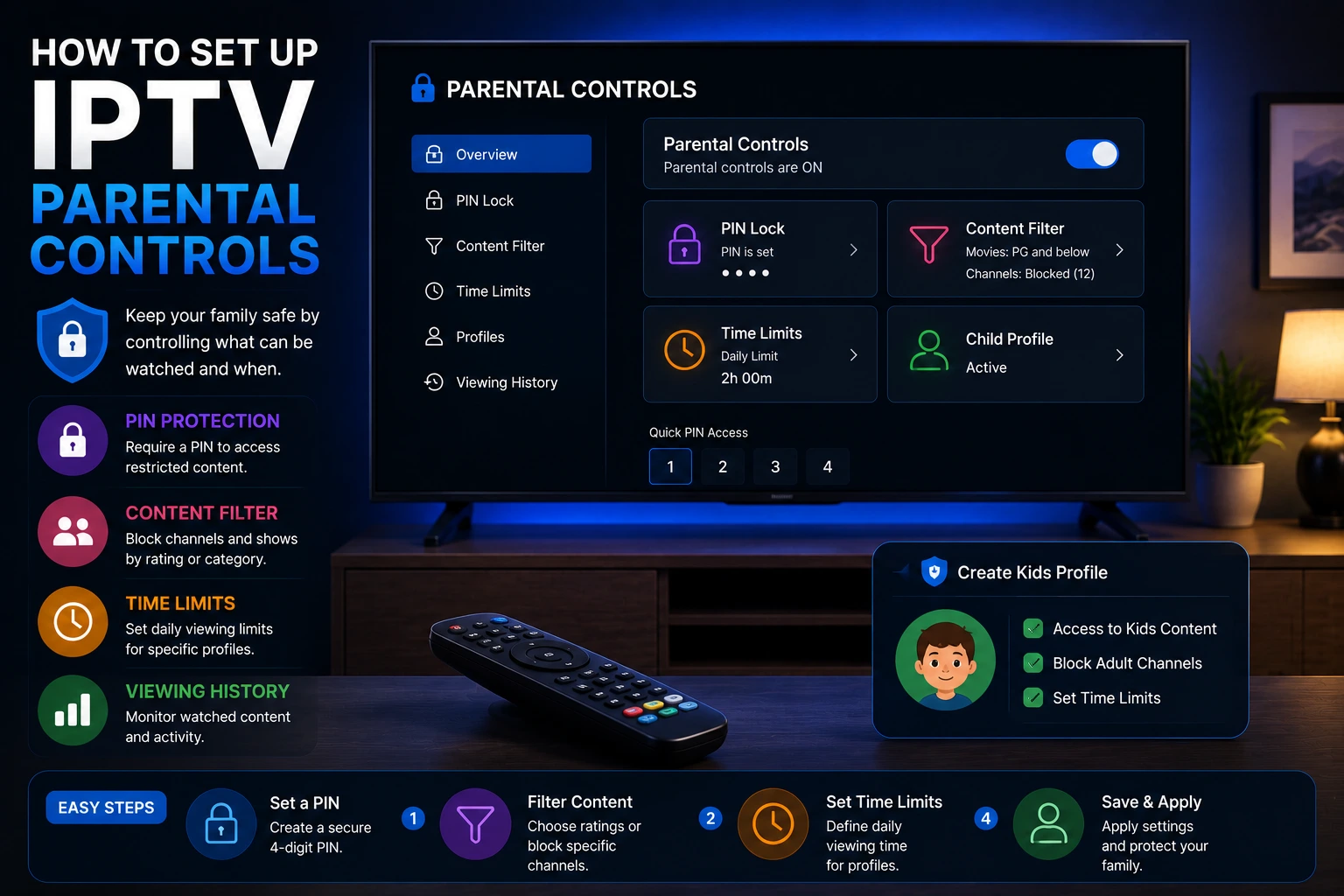
IPTV Smarters Pro includes built-in parental controls that allow you to restrict access to age-inappropriate content. Set a PIN code and filter channels, movies, and series by content rating or block specific categories.
In This Article
How to Set Up Parental Controls
Open IPTV Smarters Pro and go to Settings.
Select "Parental Control" from the settings menu.
Toggle the parental control switch to enable the feature.
Set a 4-digit PIN code that will be required to access restricted content.
Configure content restrictions by rating, category, or specific channels.
Save settings and exit. Restricted content will now require the PIN to access. Learn more about <a href="https://en.wikipedia.org/wiki/Parental_control" target="_blank" rel="noopener noreferrer">parental control systems</a>.
What You Can Restrict
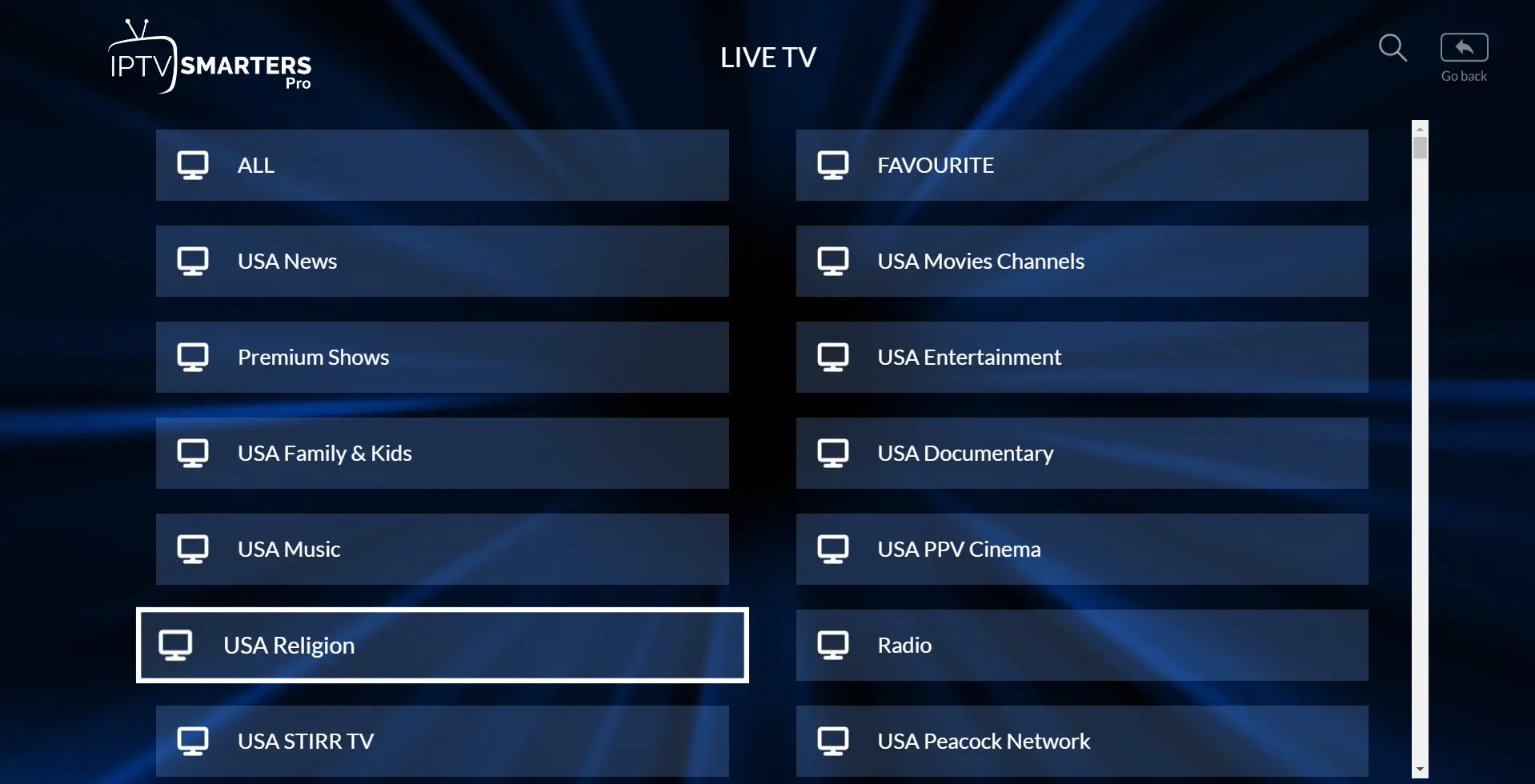
IPTV Smarters Pro gives you granular control over what content is accessible. You can block content by maturity rating, hide specific channel categories like adult content, or restrict individual channels manually. The PIN prompt appears whenever someone tries to access restricted content, and you can set different restrictions for different profiles if your provider supports multiple user profiles.
- Block by content rating (PG-13, R, adult, etc.)
- Hide entire categories like adult or horror channels
- Restrict specific individual channels
- Password-protect app settings changes
- Set viewing time limits (varies by provider)
Tips for Family Safety
Parental controls work best when combined with good habits. Choose a PIN your kids cannot guess — avoid birthdays or sequential numbers. Write the PIN down and store it somewhere safe in case you forget it. Periodically review your restriction settings, especially after app updates, to make sure everything is still configured correctly. If you share your IPTV subscription with other families, consider using a separate user profile with its own restrictions.
Important
Pro Tip
Conclusion
Parental controls in IPTV Smarters Pro give you peace of mind by putting you in control of what content your family can access. The setup takes just a couple of minutes, and the granular restriction options let you tailor the experience for each household member. Set it up right after installation and you will never have to worry about inappropriate content slipping through.
IPTV Smarters Pro Team
IPTV streaming experts with 5+ years of hands-on experience testing IPTV players, apps, and services across Android, iOS, Firestick, and Smart TV platforms.
The IPTV Smarters Pro Team has been covering IPTV technology since 2021. We test every app, feature, and device ourselves to provide accurate, practical guides. Our reviews and tutorials have helped over 100,000 readers set up IPTV on their devices.
Frequently Asked Questions
Everything you need to know about IPTV Smarters Pro.