
How to Fix Buffering in IPTV Smarters Pro
IPTV streaming experts with 5+ years of hands-on experience testing IPTV players, apps, and services across Android, iOS, Firestick, and Smart TV platforms.
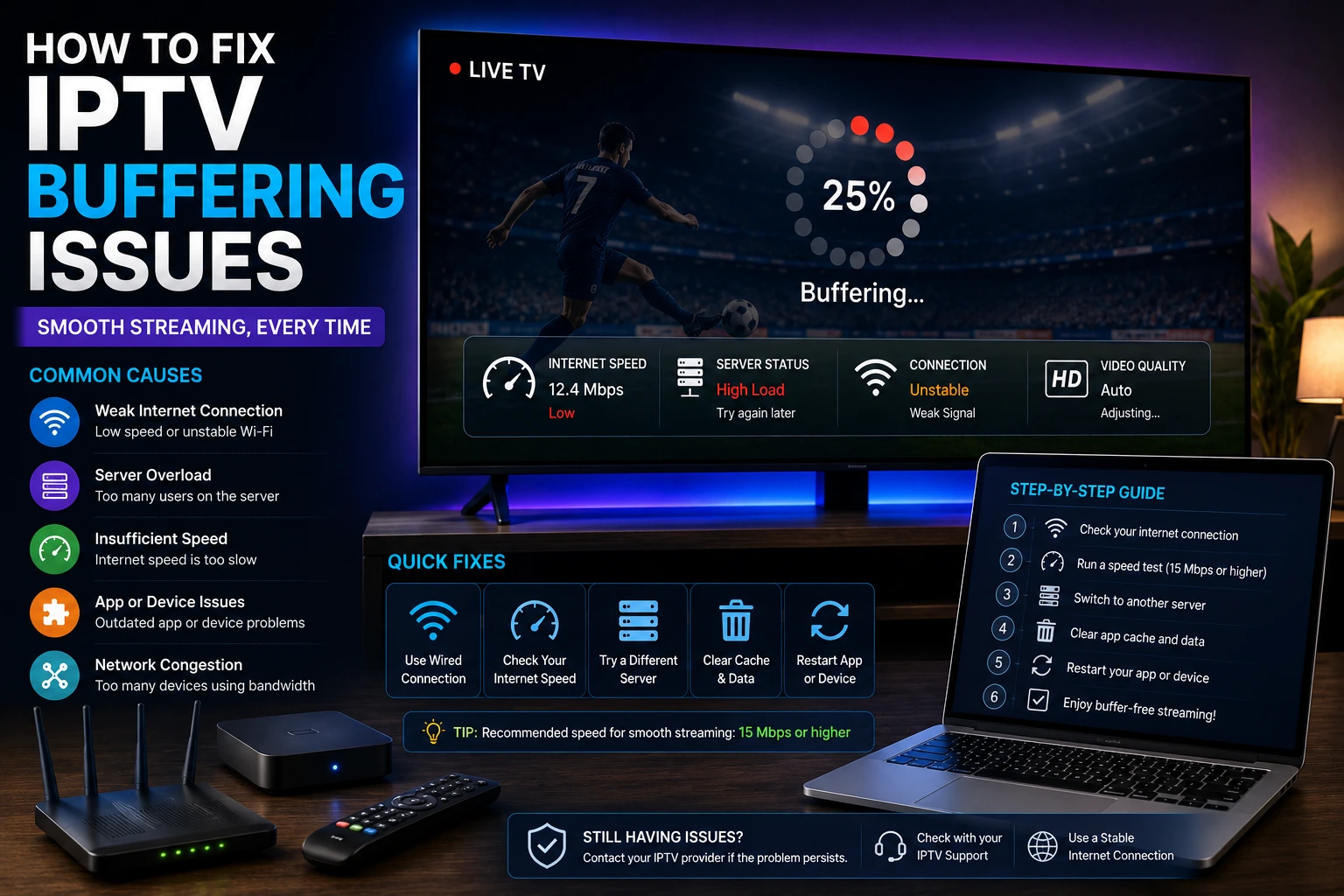
Buffering in IPTV Smarters Pro is usually caused by slow internet, server congestion, or device limitations. Try these solutions: use a wired connection, lower streaming quality, enable a VPN, clear the app cache, or switch to a different DNS server.
Key Takeaways
- Insufficient internet speed (under 10 Mbps) is the #1 cause of buffering
- A VPN prevents ISP throttling of IPTV traffic
- Wired Ethernet always outperforms Wi-Fi for streaming
- Over 60% of IPTV users experience buffering at some point
In This Article
What Causes Buffering in IPTV Smarters Pro?
Buffering happens when your device can't grab stream data fast enough to keep playback going smoothly. The usual suspects are internet speeds below 10 Mbps for HD content, Wi-Fi interference, ISPs throttling streaming traffic, overloaded provider servers, or your device simply not keeping up. The good news? You don't always need to upgrade your internet plan.
10 Proven Solutions to Fix IPTV Buffering
Check Your Internet Speed
For HD streaming, you need at least 10 Mbps. For 4K, you need 25 Mbps or higher. Run a speed test to verify your connection.
Use a Wired Connection
Ethernet provides a more stable connection than Wi-Fi. Connect your device directly to the router.
Reduce Streaming Quality
In the app settings, lower the streaming quality from 4K to 1080p or 720p to reduce bandwidth requirements.
Use a VPN
Some ISPs throttle IPTV traffic. A VPN encrypts your connection and prevents throttling.
Change DNS Settings
Switch to Google DNS (8.8.8.8) or Cloudflare DNS (1.1.1.1) for faster DNS resolution.
Clear App Cache
In Settings > Apps > IPTV Smarters Pro, clear the cache to remove temporary data that may slow down performance.
Close Background Apps
Close other apps running in the background to free up system resources and bandwidth.
Restart Your Router
Unplug your router for 30 seconds and plug it back in. This clears the router's cache and refreshes the connection.
Update the App
Make sure you are using the latest version of IPTV Smarters Pro for optimal performance.
Contact Your IPTV Provider
If none of the above works, the issue may be on the provider's end. Contact them to check server status.
Does a VPN Really Help with Buffering?
Absolutely. If your ISP is throttling IPTV traffic — and many do — a VPN is your best friend. ISPs can detect streaming traffic and deliberately slow it down to manage congestion. A VPN encrypts everything, so your ISP has no idea you're watching IPTV. This alone can wipe out buffering issues overnight.
Pro Tip
Watch Out
Final Thoughts
Buffering is annoying, but it's almost always fixable. Start with the simplest solutions — check your speed, switch to Ethernet, lower the quality — before moving to the heavier fixes like VPNs or contacting your provider. Work through the list above one step at a time, and you'll likely find the culprit long before you hit number 10.
IPTV Smarters Pro Team
IPTV streaming experts with 5+ years of hands-on experience testing IPTV players, apps, and services across Android, iOS, Firestick, and Smart TV platforms.
The IPTV Smarters Pro Team has been covering IPTV technology since 2021. We test every app, feature, and device ourselves to provide accurate, practical guides. Our reviews and tutorials have helped over 100,000 readers set up IPTV on their devices.
Frequently Asked Questions
Everything you need to know about IPTV Smarters Pro.