
IPTV Smarters Pro Login Not Working? Fix It Now (2026)
IPTV streaming experts with 5+ years of hands-on experience testing IPTV players, apps, and services across Android, iOS, Firestick, and Smart TV platforms.
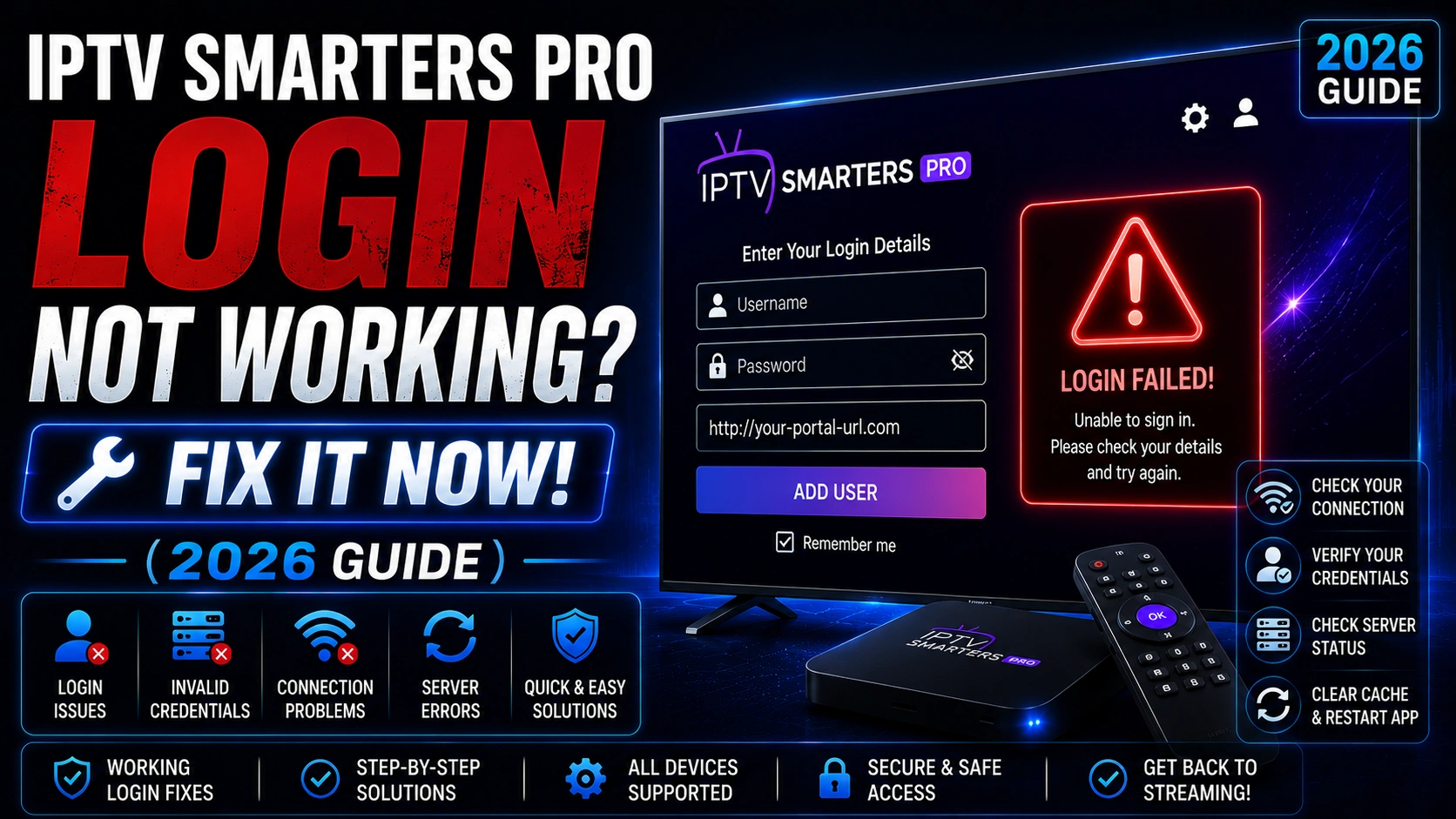
A login error prevents you from accessing all your IPTV content. The good news is that login failures in IPTV Smarters Pro are almost always caused by simple issues that are easy to fix.
Key Takeaways
- Double-check credentials for typos, especially in server URLs
- M3U URLs expire — request a fresh URL from your provider
- Xtream Codes server URL must include the port number (e.g., :8080)
- Clear app data resets corrupted login state
- Contact your provider to verify subscription status
In This Article
IPTV Smarters Pro login failures are usually caused by incorrect credentials, expired subscriptions, server URL typos (missing port number in Xtream Codes), or out-of-date M3U URLs. Fix it by double-checking your credentials, requesting a fresh M3U URL from your provider, ensuring your subscription is active, and verifying the Xtream Codes server URL includes the correct port.
What Login Error Messages Should You Look For?
"Invalid Credentials"
Your username or password is incorrect. Double-check for typos, ensure Caps Lock is off, and verify you are using the correct credentials for the login method selected (M3U vs Xtream Codes).
"Server Not Found"
The Xtream Codes server URL is incorrect or missing the port number. Ensure the URL includes the port (e.g., http://provider.com:8080). Try pinging the URL from a web browser on another device to confirm the server is reachable.
"Playlist Expired"
M3U URLs expire regularly for security. Contact your IPTV provider and request a fresh M3U URL. Enter the new URL in Settings > Playlist > Update URL.
"Account Suspended or Expired"
Your subscription may have expired or been suspended. Contact your provider to verify your account status and renew if needed.
Missing Port Number
http://your-provider.com:8080. The :8080 part is the port — without it, the app cannot reach the server.Step-by-Step Login Troubleshooting
Step 1: Verify Your Internet Connection
Open a website or YouTube on your device to confirm you have internet access. A working connection is required for authentication.
Step 2: Check Credentials Carefully
Re-enter your credentials slowly. For Xtream Codes, ensure the server URL includes http:// or https:// and the correct port number. Your provider should have given you all three pieces of information.
Step 3: Clear App Data
Go to device Settings > Apps > IPTV Smarters Pro > Storage > Clear Data. This resets the app and removes any corrupted login data. You will need to enter your credentials again.
Clearing Data vs. Uninstalling
Step 4: Try the Other Login Method
If you use M3U, try requesting Xtream Codes credentials from your provider, or vice versa. Some providers have one method working more reliably than the other.
Step 5: Update the App
An outdated app version may have login bugs. Download the latest IPTV Smarters Pro from the official download page and install it over your existing version.
Step 6: Contact Your Provider
If all else fails, contact your IPTV provider. They can verify your account status, reset your password, or provide fresh login credentials. Visit our login errors page for more help.
Why Is My IPTV Smarters Pro Login Not Working?
Login issues in IPTV Smarters Pro are usually simple to resolve. Start by verifying your credentials and subscription status, then clear the app data and try again. Most login problems are fixed in under five minutes.
Frequently Asked Questions
Why does it say invalid credentials?
The "Invalid Credentials" error means the username or password you entered does not match what your IPTV provider has on file. Check for typos, ensure Caps Lock is off, and confirm you are using the correct login method (M3U URL vs. Xtream Codes username/password). If the problem persists, ask your provider to reset your password.
Can the server be down?
Yes, your IPTV provider's server can experience downtime. If you see "Server Not Found" or the app hangs on the login screen, try connecting again after 15–30 minutes. You can also check third-party status pages or contact your provider directly to confirm whether there is an outage.
Does the app work without internet?
No. IPTV Smarters Pro requires an active internet connection to authenticate your credentials and stream content. If you are offline, the app will not log in. Connect to Wi-Fi or mobile data, then try again.
Should I use M3U instead of Xtream Codes?
It depends on your provider. Some providers support only one method. If one login method keeps failing, request the alternative credentials from your provider. M3U URLs are simpler (just a single URL) while Xtream Codes require a server URL, username, and password — but both should work if configured correctly.
Ready to Start Streaming?
Download IPTV Smarters Pro for free and enjoy live TV, movies, and series on all your devices.
Download IPTV Smarters ProConclusion
Login issues in IPTV Smarters Pro are frustrating but almost always fixable. Start by double-checking your credentials, verifying the server URL includes the correct port, clearing app data, and contacting your provider if nothing else works. For more help, visit our Troubleshooting Hub for additional guides. Ready to try it? Download IPTV Smarters Pro for free.
DNS configuration is a frequently overlooked factor in login failures. Your ISP's default DNS servers may be slow to resolve your IPTV provider's domain, causing connection timeouts during the authentication handshake. Switching to a public DNS provider like Cloudflare (1.1.1.1) or Google (8.8.8.8) can significantly improve response times. On Firestick, go to Settings > My Fire TV > Network > Your Wi-Fi Network > Advanced > DNS Settings and switch from Automatic to Manual, entering 1.1.1.1 as the primary DNS. On Android TV, this setting is under Network & Internet > Advanced > Private DNS — set it to hostname and enter one.one.one.one. The improvement in login reliability is often immediate.
VPN interference is another common cause of login failures that many users do not suspect. While a VPN helps with ISP throttling and geo-restrictions, some IPTV providers block known VPN IP ranges to comply with licensing agreements. If you are connected to a VPN when the login fails, try disconnecting and attempting authentication directly. If login succeeds without the VPN, your provider is likely blocking the VPN server's IP range. Switch to a different VPN server location, enable split tunneling to route only streaming traffic through the VPN, or contact your provider to ask whether they whitelist specific VPN providers. For users on Firestick, note that some VPN apps can interfere with the DNS resolution used by IPTV Smarters Pro — switching to a wired Ethernet connection via a USB adapter often bypasses these conflicts entirely.
IPTV Smarters Pro Team
IPTV streaming experts with 5+ years of hands-on experience testing IPTV players, apps, and services across Android, iOS, Firestick, and Smart TV platforms.
The IPTV Smarters Pro Team has been covering IPTV technology since 2021. We test every app, feature, and device ourselves to provide accurate, practical guides. Our reviews and tutorials have helped over 100,000 readers set up IPTV on their devices.