
Getting Started with IPTV Smarters Pro: Complete Beginner's Guide
IPTV streaming experts with 5+ years of hands-on experience testing IPTV players, apps, and services across Android, iOS, Firestick, and Smart TV platforms.

If you're new to IPTV, the setup process can feel overwhelming. Different login methods, multiple device types, and a handful of configuration options — it's a lot to take in. This guide walks you through every step, from downloading the app to watching your first channel. No technical experience needed.
Key Takeaways
- IPTV Smarters Pro works on 7+ platforms including Android, iOS, Windows, Mac, and Smart TVs
- Supports both M3U and Xtream Codes login methods
- Features include EPG, parental controls, multi-screen, and offline downloads
- Always use a valid IPTV subscription from a legitimate provider
In This Article
IPTV Smarters Pro is a premium IPTV player that lets you stream live TV, movies, and series on Android, iOS, Windows, Mac, Firestick, and Smart TVs. This beginner's guide covers everything from downloading the app to setting up your first playlist.
What Is IPTV Smarters Pro?
IPTV Smarters Prois a media player designed to work with IPTV service providers. Think of it as a smart remote for your IPTV subscription — it organizes channels, movies, and series into a clean interface, handles playback, and gives you tools like a TV guide and parental controls. The app itself doesn't provide any content. You bring your own subscription, and the app brings it to life.
It supports two connection methods: M3U playlists (a URL containing your channel list) and Xtream Codes API (a server URL with login credentials). Most providers offer both, but Xtream Codes is generally easier because it auto-loads your channel categories and EPG data.
Why Choose IPTV Smarters Pro?
There are plenty of IPTV players out there — TiviMate, GSE Smart IPTV, OTT Navigator, and more. What sets this one apart is cross-platform support. It runs on Android phones, iPhones, Windows PCs, Macs, Firestick, Samsung TVs, LG TVs, and Android TV boxes. Most competitors limit you to one or two platforms. If you switch between devices throughout the day, that matters.
It's also free with no ads in the player interface, includes multi-screen viewing (up to 4 devices at once), and has built-in recording. Those features usually cost extra in other apps.
Start Simple
What You Need Before Starting
Before downloading the app, make sure you have these three things:
- An IPTV subscription from a provider. The app is free — the subscription is separate.
- Login credentials — either an M3U URL or Xtream Codes (server URL, username, password). Your provider sends these when you sign up.
- A stable internet connection. At least 25 Mbps for HD streaming, 50+ Mbps for 4K or multi-screen.
For the best experience, connect your device to the router with an Ethernet cable. Wi-Fi works, but a wired connection eliminates most buffering and stability issues from the start.
Step-by-Step Setup Guide
Step 1: Download the App
Head to the download page and pick your platform. The app is available for:
- Android phones and tablets — Google Play Store or direct APK
- iPhone and iPad — Apple App Store
- Windows PC — direct download
- Mac — direct download
- Firestick — sideload via Downloader app
- Samsung TV — Samsung Smart Hub
- LG TV — LG Content Store
- Android TV — Google Play Store
Step 2: Install the Application
Installation varies by device. On Android phones, it's as simple as tapping Install from the Play Store. On Firestick, you'll need to enable Apps from Unknown Sources in Settings and use the Downloader app. Here are the specific guides for each platform:
- Firestick installation guide
- Samsung TV installation guide
- LG TV installation guide
- Android TV installation guide
- iPhone & iPad installation guide
Step 3: Choose Your Login Method
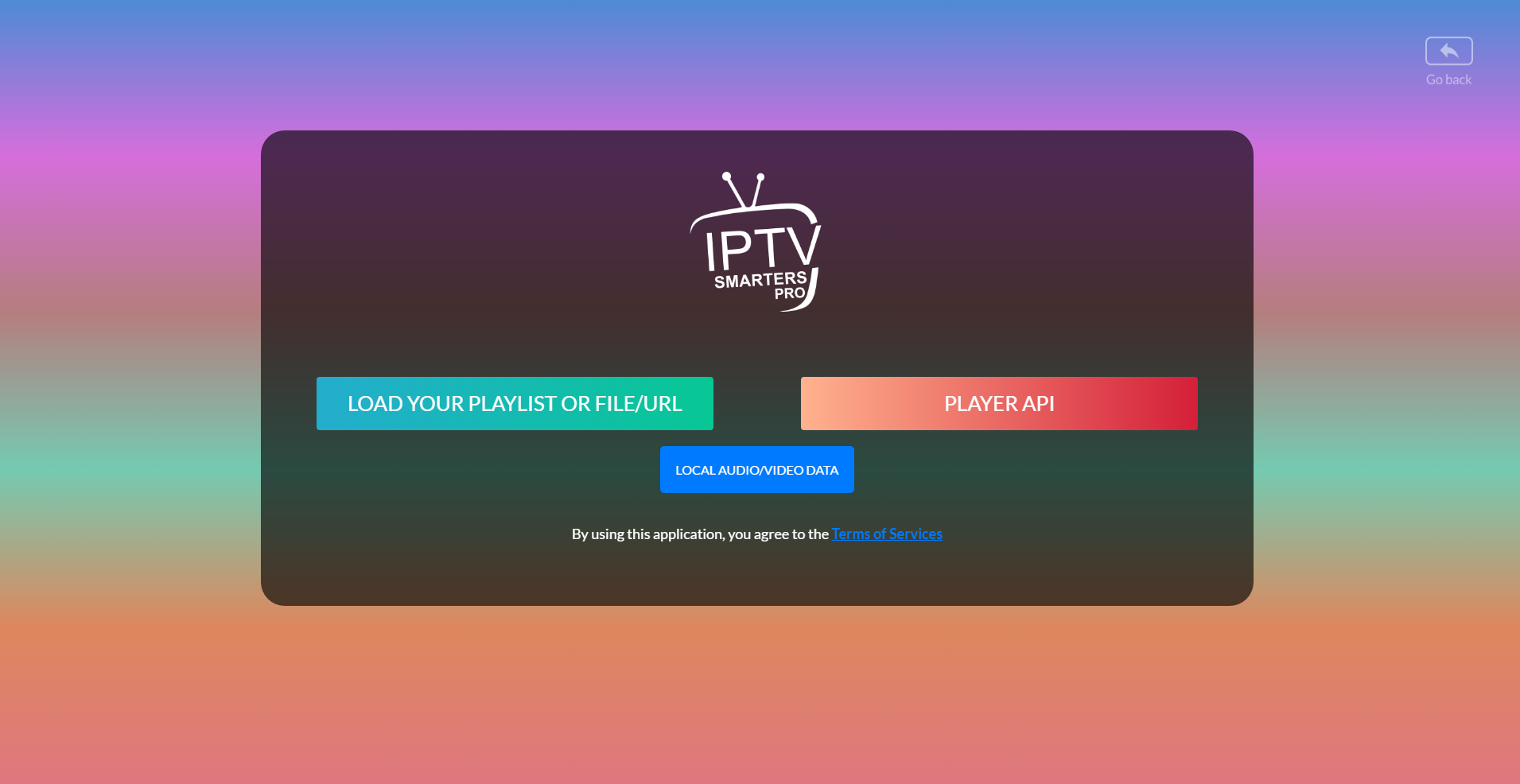
When you open the app, you'll see two options:
- Login with Xtream Codes API — Enter a server URL, username, and password. This is the recommended method because it auto-loads channels, categories, EPG, and VOD.
- Login with M3U Playlist — Paste your M3U URL directly. Works fine, but you may need to configure the EPG separately.
If You Only Have an M3U URL
Step 4: Enter Provider Credentials
For Xtream Codes, enter the details exactly as your provider sent them. The server URL usually includes a port number (like http://example.com:8080). Don't add extra spaces or characters. If login fails, double-check with your provider that the credentials are correct and your subscription is active.
Step 5: Start Streaming
Once connected, you'll see sections for Live TV, Movies, Series, and TV Guide. Browse categories, pick a channel or title, and tap to start streaming. The app remembers your viewing progress in movies and series, so you can pick up where you left off.
Best Practices for a Smooth Experience
- Use Ethernet over Wi-Fi — Wired connections eliminate signal drops and reduce buffering significantly. If your device is far from the router, consider powerline adapters.
- Keep the app updated — New versions fix bugs and improve stream compatibility. Enable auto-updates if your platform supports it.
- Set up parental controls early — Configure them before handing the remote to kids. See the parental controls guide.
- Refresh your playlist periodically — Some providers update channel URLs. Refreshing ensures you don't see dead streams.
- Save your credentials — Use a password manager. You'll need them again if you reinstall or switch devices.
Common Mistakes Beginners Make
Based on what we see in support requests, these are the most frequent pitfalls:
- Using an expired M3U URL — M3U links can expire. Always request a fresh one from your provider if yours stops working.
- Forgetting the port number — Xtream Codes URLs usually need a port like
:8080. Without it, the app can't connect. - Skipping the EPG setup — The TV guide makes IPTV feel like cable. If it doesn't load automatically, check our EPG setup guide.
- Streaming 4K on slow Wi-Fi — 4K streams need ~50 Mbps. If your Wi-Fi is unreliable, drop to 1080p or 720p for smooth playback.
- Not enabling unknown sources on Android — If sideloading the APK on Firestick or Android TV, you must enable this setting first or the install will fail.
Avoid IPTV Scams
Features Overview
| Feature | Description |
|---|---|
| Live TV | Thousands of channels organized by category and country |
| Movies & Series | On-demand content with watch progress tracking |
| EPG (TV Guide) | Program schedules with search and reminders |
| Parental Controls | PIN-protected content filtering by rating or channel |
| Multi-Screen | Watch up to 4 channels simultaneously on different devices |
| Offline Download | Save movies and shows to watch without internet |
| Recording | Schedule and save live TV broadcasts |
Frequently Asked Questions
Is IPTV Smarters Pro free?
The app itself is free to download and use. The cost comes from your IPTV subscription, which you pay separately to your provider.
Can I use the same account on multiple devices?
Yes. Your login credentials work across all supported devices. The number of simultaneous streams depends on your provider's plan, not the app. Some providers allow 1-2 streams, others offer unlimited multi-screen.
Do I need a VPN for IPTV?
Not always, but it helps. Some ISPs throttle streaming traffic, which causes buffering. A VPN encrypts your connection and prevents throttling. We cover this in our best VPN for IPTV guide.
Why is my playlist not loading?
This usually comes down to one of three issues: incorrect credentials, an expired subscription, or a server-side problem with your provider. Check your login details, confirm your subscription is active, and if everything looks correct, contact your provider. Our playlist troubleshooting guide covers this in more detail.
Does IPTV Smarters Pro work on Samsung and LG TVs?
Yes. It's available on Samsung Smart Hub (Tizen OS) and LG Content Store (webOS). Install it directly from the TV's app store — no sideloading needed. See the Samsung TV guide and LG TV guide for step-by-step instructions.
Ready to Start Streaming?
Download IPTV Smarters Pro for free and enjoy live TV, movies, and series on all your devices.
Download IPTV Smarters ProConclusion
Getting started with IPTV Smarters Prois straightforward once you have your IPTV subscription credentials ready. Download the app for your device, log in with the method your provider supports, and you're watching within minutes. The key is starting with the right login method (Xtream Codes if available), using a wired internet connection, and keeping the app updated. Ready to try it? Download IPTV Smarters Pro for free.
If you run into issues along the way, the troubleshooting section and FAQ page cover the most common problems and their fixes.
IPTV Smarters Pro Team
IPTV streaming experts with 5+ years of hands-on experience testing IPTV players, apps, and services across Android, iOS, Firestick, and Smart TV platforms.
The IPTV Smarters Pro Team has been covering IPTV technology since 2021. We test every app, feature, and device ourselves to provide accurate, practical guides. Our reviews and tutorials have helped over 100,000 readers set up IPTV on their devices.