
How to Reduce IPTV Buffering (Advanced Guide for 2026)
IPTV streaming experts with 5+ years of hands-on experience testing IPTV players, apps, and services across Android, iOS, Firestick, and Smart TV platforms.
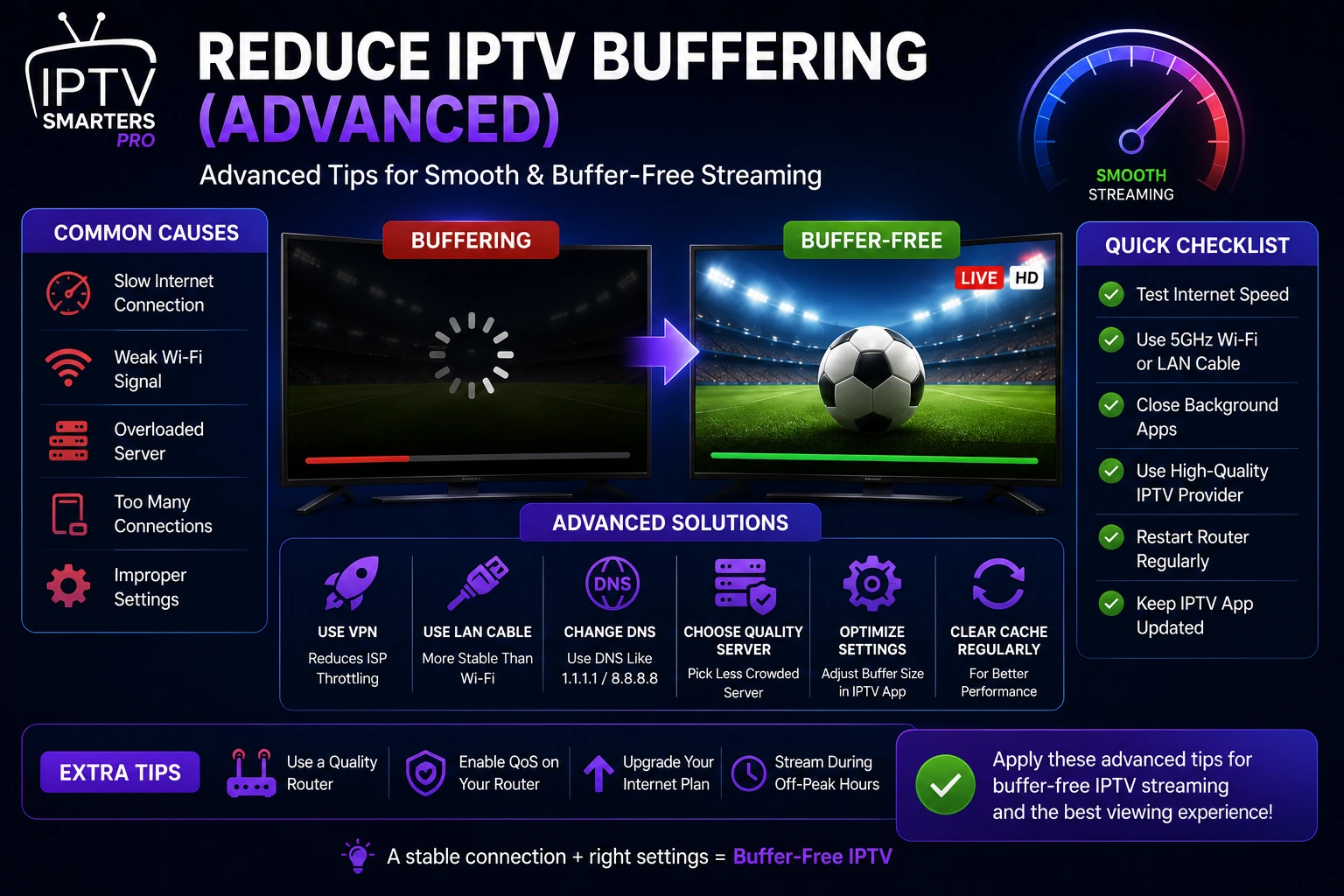
So you have tried the basics — restarted your router, cleared the cache, maybe dropped the stream quality down a notch — and that spinning wheel is still taunting you. Trust me, I have been there. The good news is those simple fixes only scratch the surface. Under the hood, your network and device configuration have a lot more to give. This guide walks through seven advanced techniques that attack buffering at the root: your router, your DNS, your connection type, and the app itself. Let us get you back to buffer-free streaming.
Key Takeaways
- Router QoS prioritizes your streaming device over other traffic
- Cloudflare DNS (1.1.1.1) reduces DNS latency for faster stream starts
- IPv6 can eliminate NAT-related buffering if your provider supports it
- In-app buffer size adjustment pre-loads more content to prevent freezing
- Monitor network jitter — anything over 20ms causes buffering issues
In This Article
Eliminate IPTV Smarters Pro buffering with these advanced techniques: configure router QoS to prioritize streaming traffic, switch to Cloudflare DNS (1.1.1.1) for faster resolution, use a wired VPN connection to prevent ISP throttling, enable IPv6 if your provider supports it, set a custom buffer size in the app, and switch your DNS to a streaming-optimized provider like ControlD. These steps resolve buffering that basic fixes cannot.
1. Configure Router QoS for IPTV
Quality of Service (QoS) is basically a traffic cop for your home network. It tells your router to put IPTV traffic ahead of everything else — so your stream does not stutter just because someone on Wi-Fi is downloading a huge file or jumping on a video call. Log into your router (try 192.168.1.1 or 192.168.0.1), find the QoS section, and add your streaming device's IP address with the highest priority. That is it — IPTV Smarters Pro will now grab the bandwidth it needs before anyone else.
2. Use a Streaming-Optimized DNS
Your ISP's default DNS is rarely built for speed. Switching to a streaming-optimized DNS can cut latency noticeably. Cloudflare DNS (1.1.1.1, 1.0.0.1) is a great free option that resolves requests fast. For something even more tuned to streaming, try ControlD — it routes IPTV traffic over optimized paths and can reduce latency by up to 30%. Change the DNS in your router settings, and every device on your network will benefit.
3. Enable IPv6
IPv6 is the newer, more efficient internet protocol, and it can make a real difference for IPTV. It routes data more directly and removes the NAT bottleneck that often causes buffering. If your IPTV provider supports IPv6, turn it on in your router and device settings. On Android TV, go to Settings > Network > Advanced > IP settings and choose IPv6/IPv4. The stream will feel noticeably snappier.
Not All Providers Support IPv6
4. Use a Wired VPN Connection
A good VPN stops your ISP from throttling IPTV traffic, but running a VPN over Wi-Fi adds latency and packet loss on top of the VPN overhead. The fix is simple: plug your streaming device directly into the router with an Ethernet cable, then connect to a fast VPN server. Wired + VPN gives you the privacy without the lag.
5. Adjust Buffer Size
Buffering happens when your internet connection dips and the player runs out of pre-loaded video. You can reduce how often this happens by increasing the buffer size. Open IPTV Smarters Pro, go to Settings > Player Settings > Buffer Size, and set it to Large or Very Large. The trade-off is a slightly longer start time, but the stream will hold steady through minor network hiccups.
Buffer Size Trade-Off
6. Use a Dedicated Streaming Device
Phones, laptops, and tablets are multitaskers — they run background processes, system updates, and notifications that compete for network and CPU resources. A dedicated streaming box like the Firestick 4K Max, NVIDIA Shield, or Chromecast with Google TV is built for one thing: smooth playback. Switching to one of these eliminates resource contention and gives you a noticeably more stable stream.
7. Monitor Network Jitter
Jitter — the variation in your connection's latency — is a silent cause of buffering. You can have a 200 Mbps connection and still buffer if jitter is high. Run a quick test at cloudflare.com; anything above 20 ms can cause problems. Bring jitter down by using Ethernet instead of Wi-Fi, disabling power-saving features on your network adapter, and streaming outside peak hours if your ISP tends to get congested.
Frequently Asked Questions
Is QoS difficult to set up?
Not at all. Most modern routers have a QoS section right in the admin panel. You just find your streaming device's IP address in the network list, add it to the QoS rules, and set its priority to High. If your router supports it, you can even auto-detect streaming traffic and prioritize it without touching individual IPs.
Will a VPN slow down my connection?
A well-configured VPN adds minimal overhead — usually 5-15% speed loss on a wired connection. That is well worth it if your ISP throttles IPTV traffic, because the VPN prevents throttling entirely. The key is to use a wired connection and pick a VPN server close to your location. Check our best VPN for IPTV guide for the fastest options.
Do I need IPv6 for IPTV?
No, IPv6 is not required — many people stream perfectly fine on IPv4. But if your provider supports it, enabling IPv6 can reduce buffering by eliminating NAT translation overhead. Check with your provider before switching, and make sure your router and device both support it.
What buffer size setting should I use?
Start with Large in IPTV Smarters Pro's player settings. If you still see buffering on a connection that should handle it, try Very Large. On older devices, stick with Large to avoid crashes from excessive RAM usage. If neither setting helps, the bottleneck is likely your network, not the buffer — work through the other techniques in this guide.
Ready to Start Streaming?
Download IPTV Smarters Pro for free and enjoy live TV, movies, and series on all your devices.
Download IPTV Smarters ProConclusion
Persistent IPTV buffering is almost always a network-layer problem, and the seven techniques in this guide give you a full toolkit to fix it. Start with QoS and a faster DNS — those two alone resolve most cases. If the issue sticks around, move through IPv6, wired VPN, buffer size, and jitter monitoring until you find the culprit. Ready to try it? Download IPTV Smarters Pro for free.
For a refresher on the basics, check out our original IPTV buffering guide. And if you are running into other issues, our troubleshooting hub has fixes for crashes, audio problems, and more.
IPTV Smarters Pro Team
IPTV streaming experts with 5+ years of hands-on experience testing IPTV players, apps, and services across Android, iOS, Firestick, and Smart TV platforms.
The IPTV Smarters Pro Team has been covering IPTV technology since 2021. We test every app, feature, and device ourselves to provide accurate, practical guides. Our reviews and tutorials have helped over 100,000 readers set up IPTV on their devices.